
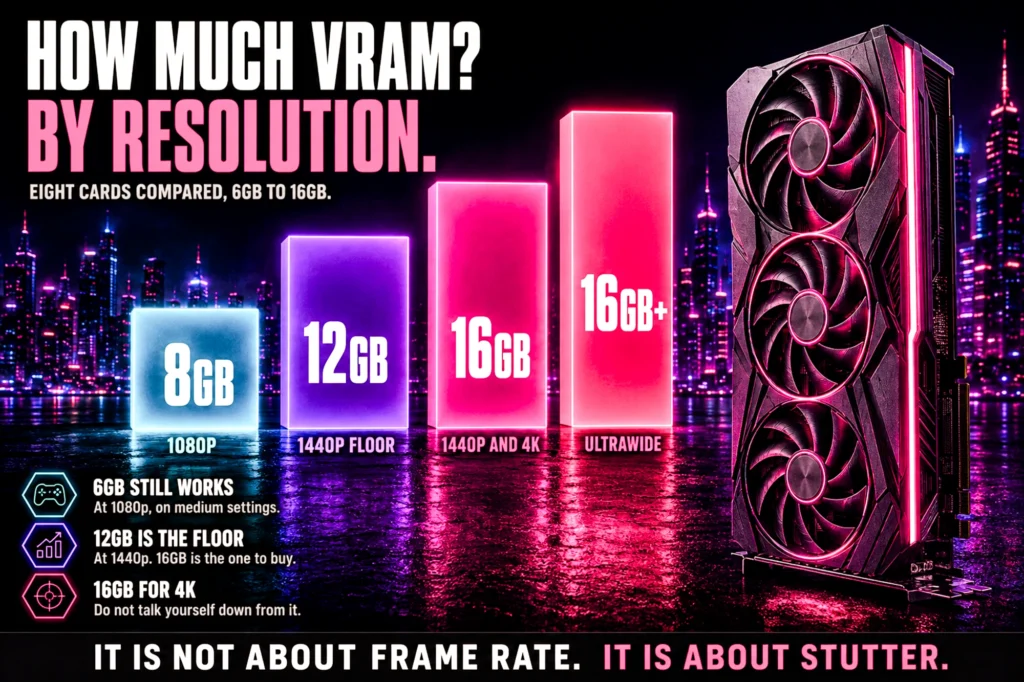
Video memory is the specification most likely to decide whether the graphics card you buy today is still comfortable in three years, and it is the one buyers most often guess at.
- 1080p: 8GB still works, and will for a while yet.
- 1440p: 12GB is the floor, 16GB is the buy.
- 4K: 16GB, and treat anything less as a compromise.
- The part nobody tells you: running out of VRAM causes stutter, not lower frame rates, which is why a benchmark average can look fine while the game feels broken.
How much VRAM do you need is the question that decides which graphics card is worth your money, and it is almost always answered with a number that is either too cautious or too expensive. The honest answer depends on exactly one thing you already know: the resolution of the monitor you are going to plug into.
This guide explains what video memory actually does, what happens when a card runs out of it, and how much you need at 1080p, 1440p and 4K. Then it applies that to six real graphics cards, arranged by capacity rather than by price, every one of them verified on its own Amazon product page. Nothing below was copied off a search results grid, and no figure here was typed from memory.
Every capacity at a glance
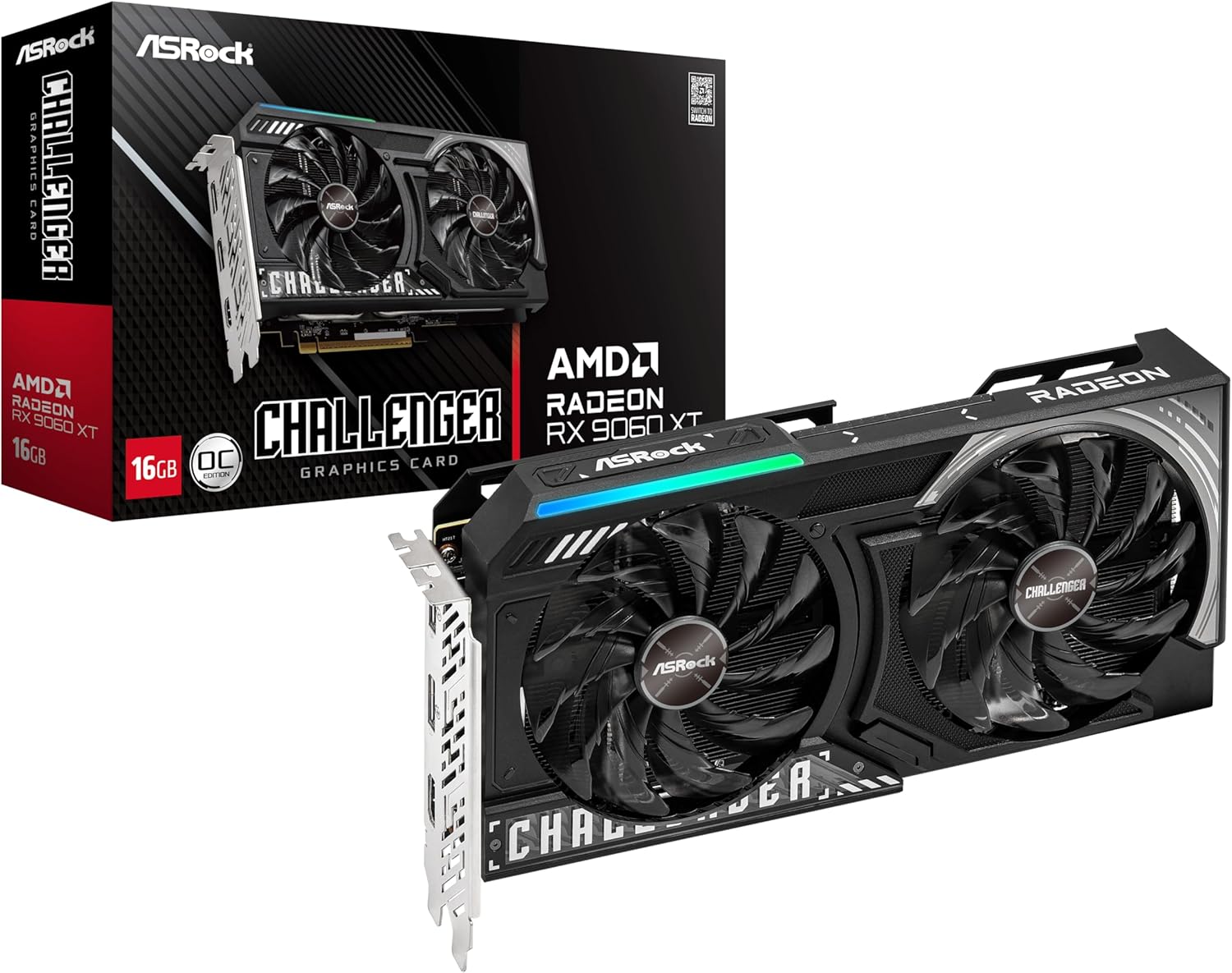
| Memory | 16GB GDDR6 |
| Comfortable at | 1440p, entry 4K |
| Bus | 128-bit |
| Rating | 4.8 (279) |
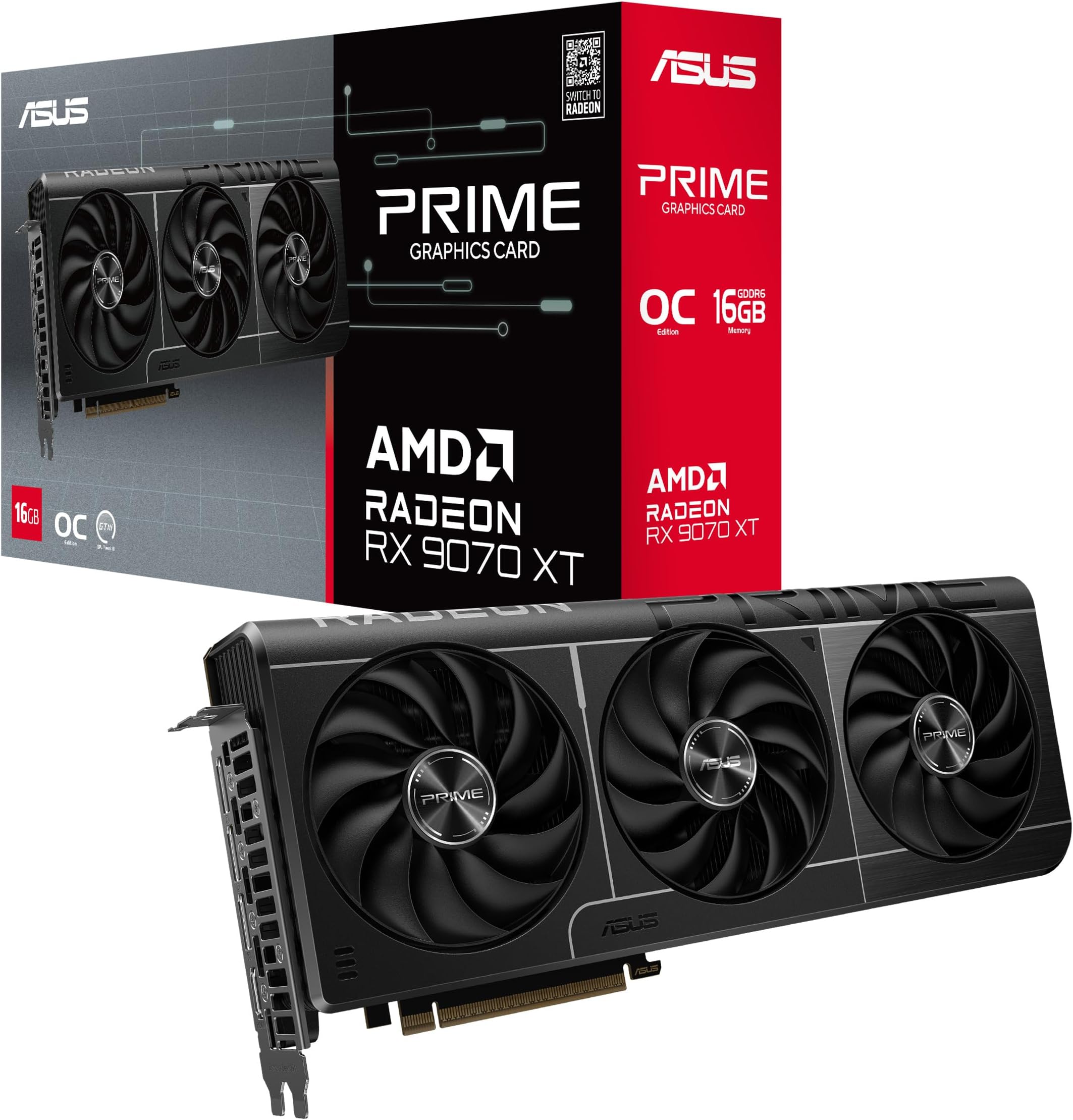
| Memory | 16GB GDDR6 |
| Comfortable at | 1440p, 4K |
| Bus | 256-bit |
| Rating | 4.6 (493) |

| Memory | 16GB GDDR7 |
| Comfortable at | 4K high-refresh |
| Rating | 4.7 (293) |
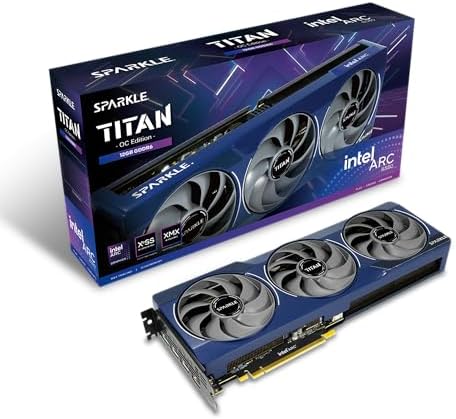
| Memory | 12GB GDDR6 |
| Comfortable at | 1080p and entry 1440p |
| Extra | Metal backplate |
| Rating | 4.4 (219) |

| Memory | 8GB GDDR7 |
| Comfortable at | 1080p |
| Bus | 128-bit |
| Rating | 4.7 (187) |

| Memory | 6GB GDDR6 |
| Comfortable at | 1080p, medium settings |
| Slots | 2-slot |
| Rating | 4.7 (1,140) |
What VRAM actually is
Video memory is workspace, not speed. It is where the card keeps the things it needs immediate access to while it draws a frame: texture files, geometry, shadow maps, the frame buffer itself, and whatever the game has decided to preload. It is the desk the card works at.
This matters because VRAM and processing power are separate specifications that people habitually treat as one. A fast card with too little memory and a slower card with plenty behave very differently when a game asks for more than the card has, and the difference is not the one most buyers expect.
It is also why the amount is quoted so prominently on the box. Of every number printed on a graphics card listing, capacity is the one that ages worst, because games only ever ask for more. A card can stay fast enough for years and still become uncomfortable because it ran out of room.
What running out of VRAM actually feels like
This is the part worth understanding, because it explains why benchmark numbers can be misleading.
When a card runs short of processing power, frame rates drop smoothly. Sixty becomes forty five, the game feels slower, and you turn a setting down. It is a gradual, honest kind of slow.
When a card runs out of memory, something else happens. The card starts moving data back and forth over the PCIe bus to system RAM, which is dramatically slower than its own memory. You do not get a lower average frame rate so much as a sequence of hitches: the game plays fine, then freezes for a fraction of a second as you turn a corner into a new area, then plays fine again.
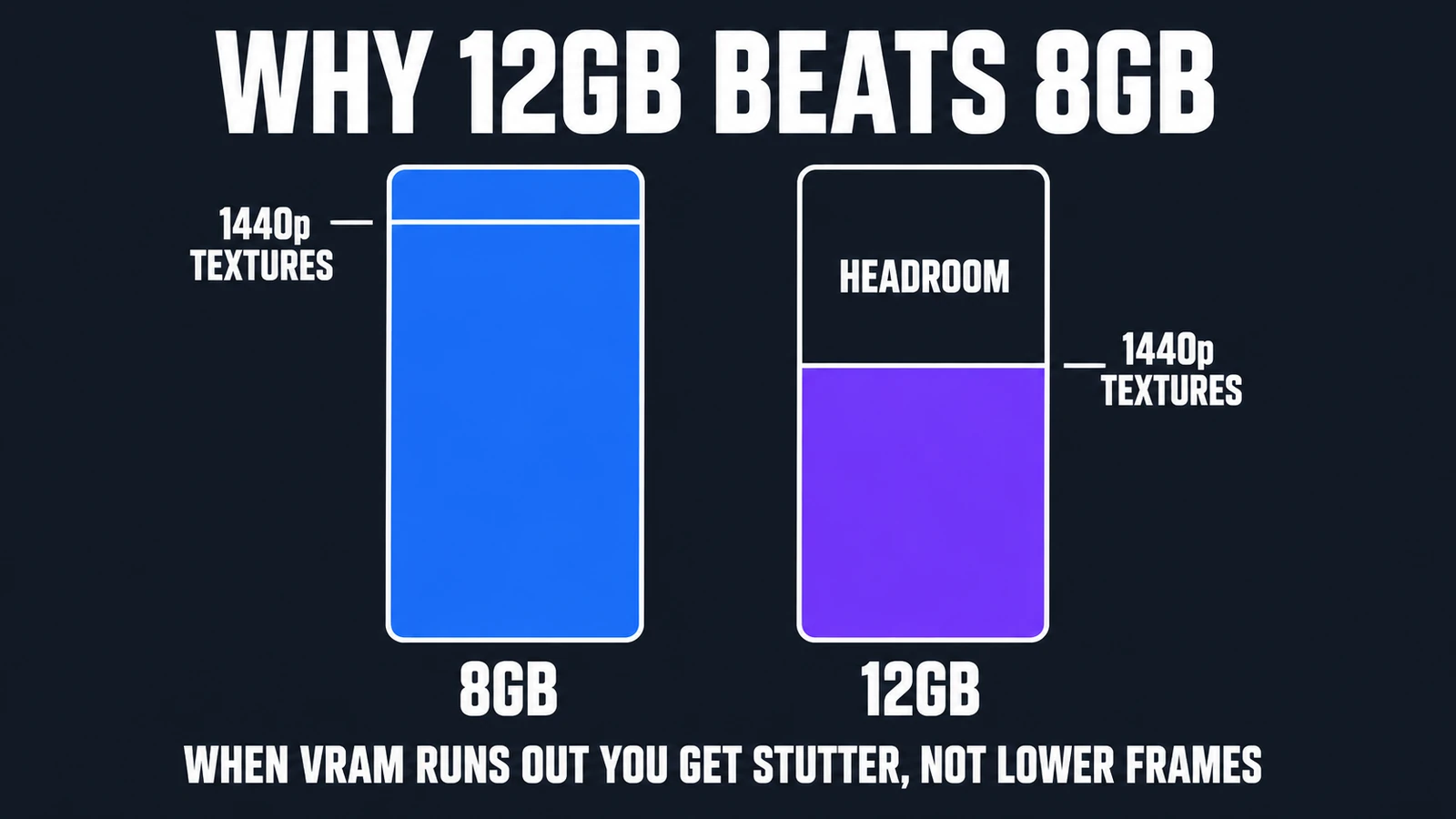
The reason this trips people up is that an average frame rate hides it. A card that stutters twice a minute can still post a perfectly respectable average, and a review that only reports averages will tell you the card is fine. It is not fine. Stutter is far more noticeable than a slightly lower frame rate, and it is the failure mode people describe as a game feeling broken without being able to say why.
The practical consequence: the only reliable fix for running out of VRAM is turning texture quality down, and texture quality is the setting with the largest visual impact for the smallest performance cost. It is the last thing you want to be forced to sacrifice, which is the entire argument for buying capacity you do not need yet.
How much VRAM you need at each resolution
Resolution drives memory use because everything scales with the number of pixels being drawn, and because higher resolution displays are usually paired with higher texture settings.
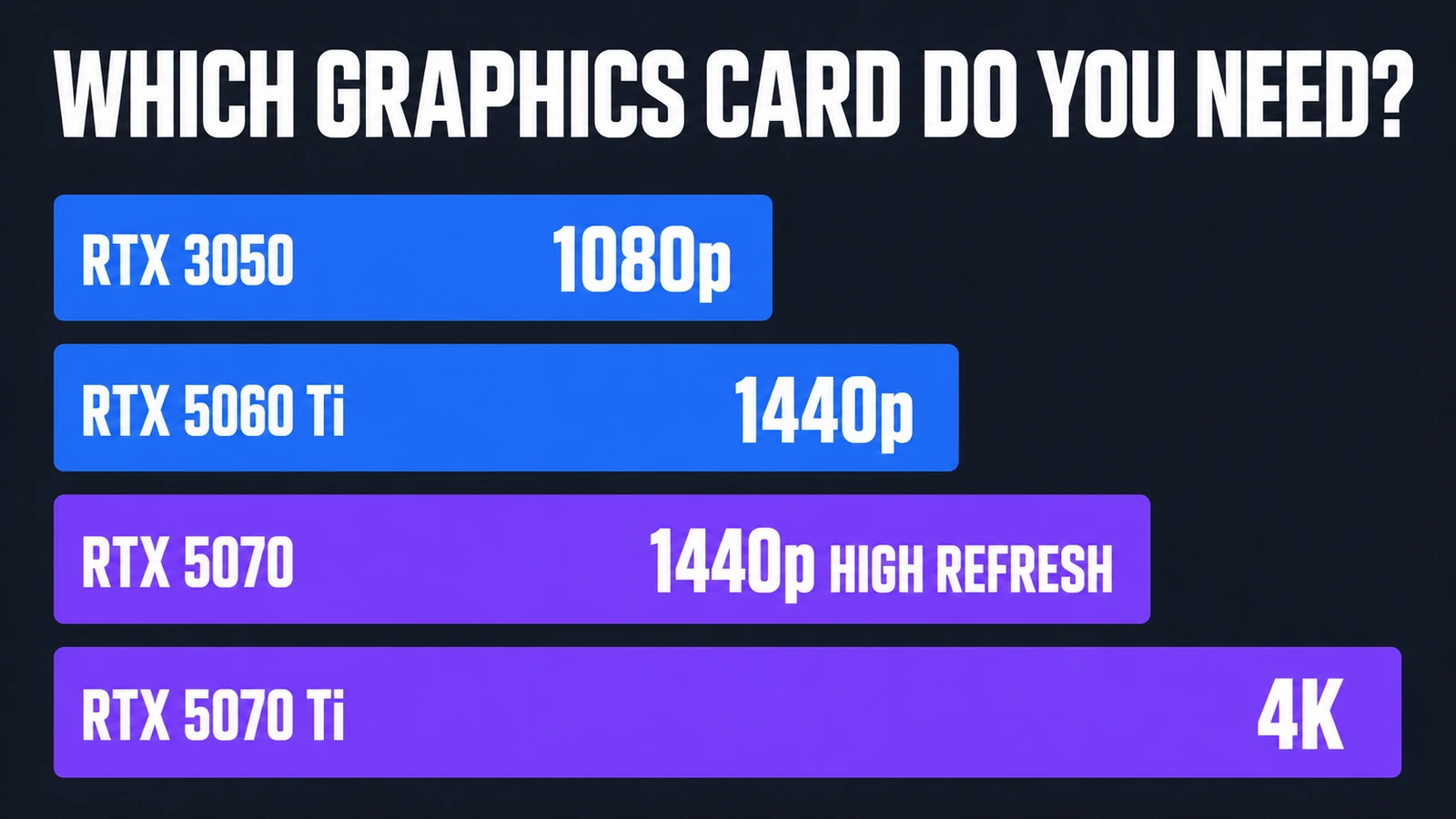
1080p: 6GB works, 8GB is comfortable
At 1920×1080 an 8GB card handles current games at high settings. There are individual titles that will push past it with every option maxed, but turning textures from Ultra to High costs almost nothing visually at this resolution and solves it.
Six gigabytes, as on both RTX 3050 cards here, is genuinely workable at 1080p on medium to high settings. It is the floor rather than the target, and it is the reason those cards are priced where they are. If you have a 1080p monitor and no plans to change it, neither figure is a compromise.
1440p: 12GB is the floor, 16GB is the buy
This is where the decision actually gets made, because 2560×1440 is where most gaming monitors now sit. At this resolution 8GB has already become the limiting factor in the most demanding recent releases, and it is the reason we recommend a 16GB card as the sensible mainstream pick rather than a faster 8GB one at a similar price.
Twelve gigabytes works today, and the Arc B580 is now much the least costly way to get it. Sixteen is what makes a card still comfortable in three years, and on current pricing the gap between them is small enough that it is the easiest upgrade to justify in the entire build.
4K: 16GB, and do not talk yourself down
At 3840×2160 the frame buffer alone is four times the size of a 1080p one, before textures. Sixteen gigabytes is the working minimum. A card with less can still produce a good 4K average, and it will still stutter when a game streams in a new area, which is exactly the problem you paid to avoid.
Ultrawide: budget closer to 4K than to 1440p
A 3440×1440 ultrawide is roughly a third more pixels than standard 1440p. It is not as demanding as 4K, but it is meaningfully past regular 1440p, and 16GB is the sensible target. Our guide to 1080p vs 1440p vs 4K covers the screen side of the same decision.
What actually fills VRAM
Not everything costs the same. In rough order of appetite:
- Texture quality. By far the largest consumer, and the one worth protecting. This is the setting that decides whether surfaces look detailed or muddy.
- Resolution. Both the frame buffer and, indirectly, the texture detail the game chooses to load.
- Ray tracing. Adds meaningful overhead on top of everything else, which is why 8GB cards with ray tracing marketing on the box are an awkward proposition.
- Frame generation. Holds additional frames in memory to produce the interpolated ones. It costs VRAM to buy frame rate.
- Ultrawide and multi-monitor. More pixels, straightforwardly.
Two things that do not meaningfully change your VRAM requirement: your processor, and your system RAM. They matter enormously for other reasons, covered in our gaming CPU guide and memory guide, but neither substitutes for memory on the card. System RAM is what the card falls back to when it runs out, and that fallback is the slow path that causes the stutter.
1. ASRock RX 9060 XT Challenger 16G: the 16GB entry point
16GB of GDDR6 on a 128-bit bus. $589.99. 4.8 stars from 279 ratings. This is the card the whole memory argument points at: it is the least expensive way to own 16GB in this lineup, and 16GB is the figure that decides whether a card is still comfortable at 1440p in three years.

- System Compatibility Note: This 2‑slot card measures 249 mm (L) x 132 mm (W) x 41 mm (H) and requires a single 8‑pin pow…
- Dedicated Support: Please contact us directly through Amazon for any product questions or assistance you may require.
- Next‑Gen AMD RDNA 4 Architecture: Powered by the AMD Radeon RX 9060 XT GPU with 32 Compute Units featuring 3rd Gen Ray T…
The narrow 128-bit bus is the honest caveat, and it is worth understanding rather than fearing. Bus width affects how quickly the card can move data in and out of its memory, so a wide bus with less capacity and a narrow bus with more capacity fail in different ways. The narrow bus costs you some bandwidth. Running out of capacity costs you the ability to keep textures high at all. Given the choice at this price, capacity is the more useful thing to own.
If you are buying one card for a 1440p monitor and you do not want to think about memory again for several years, this is the pick.
- 16GB of GDDR6 at the entry price for that capacity here
- Comfortable at 1440p today with genuine headroom for later
- Current-generation RDNA architecture on PCIe 5.0
- 4.8 stars from 279 ratings
- Two-slot cooler at 249mm fits most mid-tower cases
- 128-bit bus is narrow for the capacity
- 279 ratings, a thinner sample than the older cards here
- More card than a 1080p 60Hz monitor can use
2. ASUS Prime RX 9070 XT 16GB: the same 16GB on twice the bus
16GB of GDDR6 on a 256-bit bus. $829.99. 4.6 stars from 493 ratings. If the RX 9060 XT above is the entry price for 16GB, this is the more capable card carrying it, and the wide bus is the reason.

- Axial-tech fans now feature a smaller fan hub that facilitates longer blades and a barrier ring that increases downward …
- Phase-change GPU thermal pad helps ensure optimal heat transfer, lowering GPU temperatures for enhanced performance and …
- 2.5-slot design allows for greater build compatibility while maintaining cooling performance
GDDR6 rather than GDDR7 is a real difference and a much smaller one than capacity. Two hundred and fifty six bits of bus width more than compensates for the older memory type, and the practical result is a card that is comfortable at 1440p and genuinely usable at 4K.
The reason to think carefully here is software rather than hardware. NVIDIA’s upscaling and frame generation are more widely implemented in games than AMD’s equivalents, so if those features matter to you specifically, that is the trade you are making for the extra bandwidth.
- 16GB on a 256-bit bus, the widest memory interface in this lineup
- Comfortable at 1440p and genuinely usable at 4K
- Twice the bus width of the cheaper 16GB card above
- 4.6 stars from 493 ratings
- GDDR6 rather than the newer GDDR7
- AMD upscaling is less widely implemented than NVIDIA’s
- Larger card, so check case clearance first
3. ASUS TUF RTX 5080 16GB: 4K high-refresh, and the ceiling here
16GB of GDDR7. $1,899.99. 4.7 stars from 293 ratings. This is the card for 4K at high frame rates rather than 4K at all, and it is the only one in the lineup where memory capacity is not the limiting factor in any realistic scenario today.
- Powered by the NVIDIA Blackwell architecture and DLSS 4. System Requirements: Minimum 850W PSU with 16-pin 12V-2×6 (12VH…
- Military-grade components deliver rock-solid power and longer lifespan for ultimate durability. Compatibility: 348mm (13…
- Protective PCB coating helps protect against short circuits caused by moisture, dust, or debris
Worth being straight about: it carries the same 16GB as the 5060 Ti. What you are paying for is the processing power to use that memory at 4K and high refresh rates, not more room. If your reason for upgrading is specifically that you keep running out of VRAM at 1440p, a cheaper 16GB card solves that exact problem.
- 16GB GDDR7 with the processing power to use it at 4K high-refresh
- 4.7 stars, among the highest here
- Memory is not the constraint in any realistic current scenario
- Same capacity as cards costing a fraction of the price
- 293 ratings, a modest sample in this lineup
- Needs a substantial power supply and case
4. Sparkle Intel Arc B580 Titan OC: 12GB at the low end
12GB of GDDR6 on an Intel Arc B580. $369.99. 4.4 stars from 219 ratings. This is the least money that puts twelve gigabytes of video memory in a machine, and on a page ordered by capacity that is the entire argument for it.
- OC Edition Boost Clock: 2760MHz
- TORN Cooling 2.0
- Metal Backplate
Twelve gigabytes is the tier where 1440p stops being a compromise, and until recently getting there meant spending well over seven hundred dollars. The B580 does it for around half that. If your problem is that games are running out of memory rather than running out of speed, this is the least costly solution to that specific problem.
The honest limitation is speed rather than capacity. This is not as fast as the 16GB cards above it, and it is not as fast as similarly priced NVIDIA cards that carry only 8GB. Intel is selling memory here, not frame rates. XeSS upscaling is decent and improving, but DLSS remains more widely supported, and Arc drivers are still less predictable in older titles than either competitor.
Which makes the choice unusually clear. If you play recent, memory-hungry releases at 1080p or entry 1440p and the budget is tight, the extra four gigabytes will do more for you than the extra speed would. If your library is mostly older games, buy the faster card instead.
- 12GB at roughly half what the 12GB tier used to cost
- The entry price for this capacity in this guide
- 4.4 stars from 219 ratings, sold by Amazon directly
- Metal backplate and sag bracket included
- Slower than the 16GB cards above and than same-price NVIDIA cards
- XeSS is less widely supported than DLSS
- Arc drivers remain less predictable in older games
5. ASUS Prime RTX 5060 8GB: the 1080p card, and honest about it
8GB of GDDR7. $489.99. 4.7 stars from 187 ratings. At 1080p its 8GB is genuinely sufficient rather than a compromise, and it is the entry price among the current-generation NVIDIA cards in this lineup.

- AI Performance: 630 AI TOPS
- Powered by the NVIDIA Blackwell architecture and DLSS 4
- SFF-Ready Enthusiast GeForce Card. OC Mode: 2527 MHz/ Defult Mode: 2497 MHz (Boost clock)
The trap with 8GB cards is not the card, it is the pairing. Bought for a 1080p monitor this is a sensible, current-generation, discounted purchase. Bought for a 1440p monitor it is the card that will make you turn textures down within a year, and turning textures down is the one sacrifice that actually changes how a game looks.
If you are on 1080p and expect to stay there, buy it and spend the saving elsewhere in the build. If you suspect a 1440p monitor is in your near future, buy capacity instead.
- Entry pricing among the current-generation NVIDIA cards here
- 8GB is genuinely sufficient at 1080p
- Current generation with DLSS 4 and GDDR7
- 4.7 stars from 187 ratings
- 8GB is already the limiting factor at 1440p
- Ray tracing and frame generation eat into a small budget
- Poor choice if a 1440p monitor is in your plans
6. ASUS Dual RTX 3050 6GB: the entry point
6GB of GDDR6 in a 2-slot card. $257.22. 4.7 stars from 1,140 ratings, a very deep evidence base for a card at this price.
- NVIDIA Ampere Streaming Multiprocessors: The all-new Ampere SM brings 2X the FP32 throughput and improved power efficien…
- 2nd Generation RT Cores: Experience 2X the throughput of 1st gen RT Cores, plus concurrent RT and shading for a whole ne…
- 3rd Generation Tensor Cores: Get up to 2X the throughput with structural sparsity and advanced AI algorithms such as DLS…
Six gigabytes is the entry point, and it needs stating plainly: this is a 1080p card at medium to high settings, and it will ask you to manage texture quality in the most demanding recent releases. What it offers in exchange is the lowest cost of entry to current gaming with a thousand-plus owners behind the rating.
For a first build, a secondary machine or a budget that genuinely will not stretch, it is a reasonable purchase. It is not a card to pair with a new 1440p monitor.
- 1,140 ratings at 4.7, a very deep evidence base
- The lowest outlay to get into current gaming
- 2-slot design fits almost any case
- Modest power requirements
- 6GB requires managing texture quality in demanding games
- Previous-generation architecture
- 1080p only, in practice
Every card compared by memory
| Card | Memory | Notable | Comfortable at | Price | Rating |
|---|---|---|---|---|---|
| ASRock RX 9060 XT Challenger 16G | 16GB GDDR6 | 128-bit bus | 1440p, entry 4K | $589.99 | 4.8 (279) |
| ASUS Prime RX 9070 XT 16GB | 16GB GDDR6 | 256-bit bus | 1440p, 4K | $829.99 | 4.6 (493) |
| ASUS TUF RTX 5080 16GB | 16GB GDDR7 | — | 4K high-refresh | $1,899.99 | 4.7 (293) |
| Sparkle Intel Arc B580 Titan OC | 12GB GDDR6 | Metal backplate | 1080p and entry 1440p | $369.99 | 4.4 (219) |
| ASUS Prime RTX 5060 8GB | 8GB GDDR7 | 128-bit bus | 1080p | $489.99 | 4.7 (187) |
| ASUS Dual RTX 3050 6GB | 6GB GDDR6 | 2-slot | 1080p, medium | $257.22 | 4.7 (1,140) |
VRAM in a gaming laptop is a completely different decision
Everything above assumes you can swap the card. In a laptop you cannot, and that single fact changes the answer more than any number on this page. A desktop buyer who gets the memory wrong replaces a graphics card in twenty minutes. A laptop buyer who gets it wrong replaces the laptop.
So the margin you leave has to be bigger. On the desktop side we said 8GB is workable at 1080p today and 16GB is the safe 1440p answer. On a laptop, shift both up a tier if the budget allows, because you are buying for the whole life of the machine rather than for this year.
The specification you most need is the one the listing usually omits
Here is the trap, and it is worth being blunt about it. Look at the three laptops below. Every listing names the graphics chip — RTX 5060, RTX 5070, RTX 5050 — and not one of them states how much video memory it has. That is not an oversight by us; it is what the product pages say.
This matters because a laptop GPU and the desktop card of the same name are not the same part, and their memory allowances do not have to match either. A model number is a marketing name, not a capacity. We are not going to print a VRAM figure for these machines that the seller has not published, because a plausible-sounding number is exactly the kind of thing this site refuses to invent.
What to do instead: before you buy any gaming laptop, find the memory figure on the manufacturer’s own specification page for that exact configuration, not the retailer summary and not a review of a similarly-named model. If you cannot find it stated anywhere, treat that as a reason for caution rather than an inconvenience.

| Graphics | RTX 5060 |
| Screen | 16″ FHD+ 165Hz |
| Wireless | Wi-Fi 7 |
| Rating | 4.4 (621) |

| Graphics | RTX 5070 |
| Screen | 15.6″ QHD+ 165Hz |
| Memory | 32GB DDR5 |
| Rating | 4.0 (360) |

| Graphics | RTX 5050 |
| Screen | 15.6″ FHD 144Hz |
| Memory | 16GB DDR5 |
| Rating | 4.3 (121) |
ASUS ROG Strix G16 (2025) — the current-generation chip
At $1,614.99 this is the one of the three with the longest owner history behind it, and generation matters more on a laptop than on a desktop precisely because you are locked into it. 4.4 stars from 621 owners is the strongest evidence of the three. The panel is 16in FHD+ at 165Hz, which is the resolution its GPU is best matched to — and matching panel to chip is how you avoid asking a mobile card to do 1440p work it was not specified for.

- HIGH-LEVEL PERFORMANCE – Unleash power with Windows 11 Home, an Intel Core i7 Processor 14650HX, and an NVIDIA GeForce R…
- FAST MEMORY AND STORAGE – Multitask seamlessly with 16GB of DDR5-5600MHz memory and store all your game library on 1TB o…
- DYNAMIC DISPLAY AND SMOOTH VISUALS – Immerse yourself in stunning visuals with the smooth 165Hz FHD+ display for gaming,…
- Current-generation mobile chip, which matters most when you cannot upgrade it
- 4.4 stars from 621 owners, the largest sample of the three laptops here
- 165Hz panel matched to the resolution the chip suits
- Wi-Fi 7
- The listing does not state the video memory figure
- $1,614.99 buys a considerably faster desktop card on its own
- FHD+ only, so no headroom to move up a resolution later
- Nothing inside can be upgraded when it stops being enough
MSI Katana 15 HX — the only one with a QHD panel
$2,199.99, an RTX 5070 mobile chip and a 15.6in QHD+ 165Hz screen. This is the machine on this page most likely to run into a memory ceiling, and the reason is structural rather than a criticism: a higher-resolution panel asks more of the frame buffer, exactly as the desktop section above described. Buying QHD on a laptop is the point at which the unstated memory figure stops being academic.
4.0 stars is the lowest score of the three, though it rests on 360 ratings, which is a deeper sample than the cheaper machine below. A weak score on a large sample tells you more than a strong one on a small sample, and it is worth weighing when the machine cannot be upgraded.
- Intel Core i9 HX Power for Elite Gaming: Dominate demanding titles with the Intel Core i9-14900HX and its 24-core hybrid…
- GeForce RTX 5070 With Ray Tracing & DLSS 4: Powered by NVIDIA Blackwell, the RTX 5070 delivers stronger ray tracing, hig…
- QHD 165Hz, 100% DCI-P3 for Ultra-Clear Combat: The QHD 165Hz display reveals more detail, reduces motion blur, and boost…
- QHD+ 165Hz, the sharpest panel of the three
- RTX 5070 mobile, the highest-tier chip here
- 32GB of system memory and 1TB of storage included
- QHD asks the most of a memory figure the listing does not publish
- 4.0 stars, the lowest score of the three
- 15.6in chassis for a high-wattage chip, so expect fan noise
Lenovo Legion LOQ — the honest entry point
$1,424.99 and an RTX 5050 mobile chip. This is the 1080p laptop, and it should be bought as one. The 15.6in FHD 144Hz panel is well matched to what the chip is for, and the listing does state 16GB of system memory — which is a different thing from video memory, and worth separating in your head, because retailers routinely quote the larger of the two numbers without labeling which one it is.
- STEP UP TO TRUE GAMING – The Lenovo Legion LOQ is your first step into gaming, unlocking a new caliber of entertainment….
- GAME WITHOUT COMPROMISE – Be everything you want to be, in game and out with optimized performance and new AI-enhanced f…
- STAY ICY, GAME SPICY – Lenovo LOQ’s Hyperchamber Cooling keeps your system from overheating with turbo fans and copper h…
- The entry price for a current gaming laptop here at $1,424.99
- 16GB of system memory stated on the listing, and G-Sync
- Panel resolution honestly matched to the chip
- 4.3 stars from 121 owners
- RTX 5050 is the entry tier, and it is not going to grow into 1440p
- Video memory again unstated
- 144Hz rather than the 165Hz of the other two
What about consoles? The question does not translate
"How much VRAM does a PS5 have" is one of the most common versions of this question, and it deserves a straight answer: the console does not separate it the way a PC does, so there is no clean figure to give you.
A desktop graphics card has its own dedicated pool of memory, physically separate from the system memory your processor uses. That separation is what makes the question a meaningful one on PC — the number is a hard wall, and running into it produces the stutter described earlier on this page. A console is built differently: it has one pool of memory that the system divides between game data and graphics work as each title requires.
Which is why the PS5’s product listing does not publish a VRAM figure, and why we are not going to print one. The practical consequence for a buyer is more useful than the number would be anyway: on a console you never have to make this decision. Developers target the hardware directly and handle the memory budget for you. That is the actual trade — you give up the choice, and in exchange you never get it wrong.
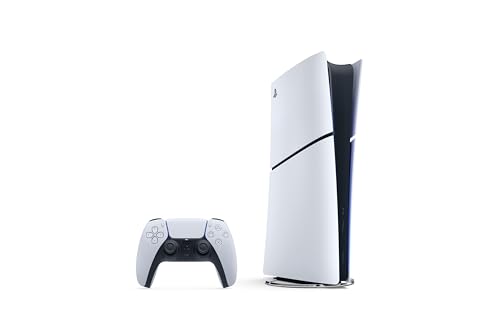
| Type | Home console |
| Disc drive | No, digital only |
| Controller | DualSense |
| Rating | 4.6 (1,077) |
At $569.05 the PS5 Digital Edition costs about the same as a 16GB graphics card on this page, and that is the whole machine rather than one component of one. That comparison is not quite fair — a PC does far more than play games — but if the only reason you are reading a VRAM explainer is that you want games to run properly without having to think about it, the honest recommendation is to consider the machine where the thinking is already done.
- Slim Design, players get powerful gaming technology packed inside a sleek and compact console design.
- 825GB of storage, keep your favorite games raeady and waiting for you to jump in and play
- Ultra-High Speed SSD, maximize yoru play sessions with near instant load times for installed PS5 games
- The memory decision is made for you, permanently
- 4.6 stars from 1,077 owners
- A complete machine for roughly the price of one 16GB card
- No disc drive, so the library is download-only
- No upgrade path of any kind
- Settings control is limited to what each developer exposes
- Locked to one storefront and its pricing
- Does none of the non-gaming work a PC does
The 8GB question, answered plainly
Eight gigabyte cards are still being manufactured and sold at prices that look competitive, and they are not a scam. They are a 1080p product. The difficulty is that they are frequently marketed with features that only make sense above 1080p, and bought by people pairing them with 1440p monitors.
If a card has 8GB and you have a 1440p screen, you are buying a card that will force you to turn down the one setting you most want to keep. That is the trade, stated plainly. It is a reasonable trade at the right price and a bad one at the wrong price.
The same logic applies one tier down. Six gigabytes at 1080p on medium settings is a real, usable configuration that a great many people are happily gaming on. Six gigabytes bought expecting 1440p is a disappointment waiting to happen. The number is not good or bad on its own. It is only ever good or bad relative to the screen you are feeding.
Does VRAM affect frame rate, or only stutter?
This is the most commonly misunderstood part of the whole subject, and getting it right will save you money.
Below the ceiling, more video memory does nothing for your frame rate. A card with 16GB running a game that uses 7GB performs exactly as it would with 8GB. The spare capacity is not doing work, it is sitting there. This is why a bigger memory figure on a slower card does not beat a smaller figure on a faster one — and why the memory number alone is a poor way to rank graphics cards.
Above the ceiling, it stops being about frame rate at all. When a game needs more than the card holds, the shortfall gets served from system memory across the PCIe bus, which is dramatically slower than the memory on the card itself. What that produces is not a gently lower frame rate. It is the specific, ugly behavior described earlier: textures loading in late, hitching as you turn, and sudden drops that have nothing to do with how busy the scene is.
So the two numbers fail differently, and that is the whole point. A card that is short on raw speed gives you a lower but steady frame rate, which you can fix by turning settings down a notch. A card that is short on memory gives you a stutter that a lower resolution often will not fix, because texture quality is usually the setting driving it. One failure is graceful. The other is not.
The practical rule: buy the fastest card your budget allows, then check its memory is adequate for your resolution — in that order. Reversing those two, and buying a slower card because it advertises a bigger number, is the most common expensive mistake in this category.
How to check how much VRAM you are actually using
You do not have to guess at any of this. Before you spend anything, measure what your current machine is doing — it is the single most useful fifteen minutes available to you, and it frequently shows the problem is somewhere else entirely.
The built-in route. Windows Task Manager has a Performance tab with a GPU entry, and it reports dedicated GPU memory usage live. Open your game, play normally for a few minutes at your usual settings, then alt-tab out and look. It is not the most precise tool available, but it is already installed and it answers the question.
The better route. Your graphics card manufacturer’s own software — and most monitoring utilities — can display a live overlay while you play, which is considerably more useful than checking after the fact. Memory pressure shows up in motion, in the moments where you turn quickly into a new area, and those are exactly the moments you are not looking at Task Manager.
What you are looking for, and the trap in reading it. A game sitting near your card’s capacity is not automatically in trouble. Graphics drivers will happily fill available memory with data they might need later, in the same way an operating system uses spare system memory for cache — high usage on its own is not evidence of a problem. The signal that matters is usage pinned at the ceiling at the same time as the stutter and late-loading textures. Both together mean you are short. Either one alone does not.
And check what else is holding memory. A browser with thirty tabs, a streaming overlay and a chat client all consume video memory before your game gets any. If you are marginal, closing those is free and it sometimes settles the issue without a purchase.
The settings that cost the most memory, in order
If you are already short, these are the dials worth turning, roughly in order of how much they give back per unit of visual quality surrendered.
Texture quality, by a wide margin. This is the setting that fills a frame buffer, and it is the first one to reduce. Dropping from the highest texture preset to the one below it is usually the single largest saving available, and on a normal-sized screen at a normal viewing distance it is frequently the hardest change to notice. If you take one thing from this section, take that.
Resolution, and specifically upscaling. Rendering at a lower internal resolution and reconstructing to your display’s native resolution reduces memory pressure as well as raw load. This is why the resolution tiers earlier in this article are stated as targets rather than absolutes — the resolution you output is not always the resolution the card is working at. Our resolution guide covers what each tier actually asks for.
Ray tracing and its associated buffers. These carry a real memory cost on top of their performance cost, which is why a card can be nominally fast enough for ray tracing and still run short. If a game is stuttering with ray tracing on and steady with it off, memory is a likely culprit rather than raw speed.
Shadow and reflection quality. Meaningful but smaller savings than the three above. Worth adjusting once you have already tried them.
What not to bother with: anti-aliasing modes, view distance and most post-processing effects cost frame rate rather than memory. Turning them down when your problem is memory pressure will make the game slightly uglier and will not fix the stutter. Diagnose which of the two problems you actually have before you start turning things off.
Which figure will still be enough in three years?
This is the question underneath most of the others, and it deserves a more careful answer than a number. Nobody can tell you what games will require in 2029, and anyone who states it confidently is guessing. What we can do is look at the direction the pressure comes from, because that is genuinely predictable.
Consoles set the floor, and they do it for years at a time. The overwhelming majority of large games are built to run on the current console generation first and ported to PC second. That means console memory budgets act as an anchor on how much a game demands — developers cannot ship a title that will not run on the hardware most of their customers own. When a console generation lasts most of a decade, so does the plateau it creates. This is the single strongest reason not to panic-buy capacity you do not need yet.
The pressure comes from resolution and textures, not from games getting vaguely heavier. As covered above, texture quality is what fills a frame buffer. Higher-resolution texture packs and higher output resolutions are the two things that reliably push the requirement up, and both are things you control. A card that is marginal in 2029 at maximum textures is usually completely comfortable one preset down — which is a much smaller concession than it sounds.
So the honest guidance, by capacity:
6GB is already at its limit. It works at 1080p with settings managed, and it is not a figure to buy into now if you have any choice. The 3050 here is on this page because it is an honest entry route into PC gaming, not because it has headroom.
8GB is fine at 1080p today and will remain workable there, with textures turned down as time passes. It is not a 1440p figure to buy new in 2026, and treating it as one is the mistake most likely to leave you disappointed within two years.
12GB is the practical floor for 1440p and should stay comfortable for several years at that resolution. It is the figure where you stop thinking about memory and start thinking about raw speed instead, which is the correct order of concerns.
16GB is the figure that removes the question rather than deferring it. At 1440p it is generous today and will not become the constraint before the card itself is too slow to matter — which is exactly the position you want to be in, because a card that runs out of speed degrades gracefully and one that runs out of memory does not.
The rule that survives all of this: buy the memory your resolution needs plus one tier if the price gap is small, and put every remaining dollar into a faster card rather than a larger number. Capacity you never use has bought you nothing, and speed you did not buy is the thing you will actually notice, every single day, in every game you play.
What we would not worry about
- Memory type. GDDR6 versus GDDR7 is a real difference and a much smaller one than capacity. The RX 9070 XT carries GDDR6 on a wide bus and outruns narrower GDDR7 cards.
- Memory bus width in isolation. It matters, as the 96-bit RTX 3050 shows, but it is already reflected in the performance figures you are comparing. Do not treat it as a separate scorecard.
- Task manager readings. Games commonly reserve more memory than they are actively using. A card reporting 7GB used out of 8 is not necessarily struggling.
- Marketing around ray tracing on small-memory cards. The feature works. Whether there is room to use it alongside high textures is the actual question.
How much VRAM you need, decided in one minute
Look at your monitor’s resolution. If it says 1920×1080, 6GB is workable and 8GB is comfortable, so buy on price and spend the saving elsewhere in the build. If it says 2560×1440, buy 16GB if the price gap is small and accept 12GB if it is not. If it says 3840×2160, 16GB is the entry ticket and bandwidth matters as much as capacity.
Then stop optimizing. Video memory is one specification among several, and the difference between a good decision and a perfect one here is smaller than the difference between buying now and waiting six months for a price that may not come.
Frequently asked questions
How much VRAM do you need for gaming in 2026?
It depends entirely on your monitor’s resolution. At 1080p, 6GB is workable and 8GB is comfortable. At 1440p, 12GB is the working minimum and 16GB is the better buy. At 4K, 16GB is the entry point. Buying more memory than your resolution needs does not make games run faster.
Is 8GB of VRAM enough in 2026?
At 1080p yes, and it will stay workable for some time. At 1440p it is already the limiting factor in the most demanding recent titles, and at 4K it is not enough. The important part is how running out feels: you get stutter rather than lower frame rates, and the only real fix is turning texture quality down.
What happens when a graphics card runs out of VRAM?
The card starts moving data between its own memory and much slower system RAM over the PCIe bus. Instead of a smooth drop in frame rate you get hitching: the game plays normally, freezes briefly as it loads a new area, then continues. Average frame rate figures often hide this, which is why a card can benchmark well and still feel broken.
Is 12GB or 16GB of VRAM better for 1440p?
Twelve gigabytes is enough for 1440p today, and the Arc B580 is the least costly card that provides it. Sixteen is what keeps a card comfortable in three years and lets you leave texture quality high in the most demanding titles. If the price gap is small, take the capacity. If it is large, 12GB is not a problem yet.
Does more VRAM increase frame rate?
No. Once a card has enough memory for what it is being asked to draw, adding more changes nothing. VRAM is workspace rather than speed. It only affects performance when you run out, and then it affects smoothness rather than the average frame rate.
Does memory bus width matter as much as capacity?
They fail differently. A narrow bus costs you bandwidth, so data moves in and out more slowly. Running out of capacity costs you the ability to keep textures high at all. The RTX 5060 Ti pairs 16GB with a narrow 128-bit bus, while the RX 9070 XT pairs 16GB with a 256-bit bus, and that difference is what separates a 1440p card from a 4K one.
Is GDDR6 or GDDR7 more important than capacity?
Capacity wins. GDDR7 is genuinely faster, but the RX 9070 XT carries GDDR6 on a 256-bit bus and outperforms narrower GDDR7 cards. More memory of a slower type beats less memory of a faster type in the situation that actually hurts, which is running out.
Do I need more VRAM for ray tracing and frame generation?
Yes, both add memory overhead on top of the game itself. Frame generation holds extra frames in memory to produce the interpolated ones, and ray tracing carries its own cost. This is why an 8GB card marketed on its ray tracing features is an awkward proposition above 1080p.
Does my CPU or system RAM affect how much VRAM I need?
No. Both matter a great deal for overall gaming performance, but neither substitutes for memory on the graphics card. System RAM is what the card falls back to when it runs out of its own, and that fallback is precisely the slow path that causes stutter.
How much VRAM does a gaming laptop need?
Shift up a tier compared with a desktop, because you cannot change it later. Where 8GB is workable at 1080p on a desktop, a laptop you intend to keep for several years is better served by more. The complication is that laptop listings frequently name the graphics chip without stating its memory at all, and a mobile chip is not the same part as the desktop card sharing its name. Check the manufacturer specification page for your exact configuration before buying.
Does more VRAM increase FPS?
Not below the ceiling. A card with 16GB running a game that uses 7GB performs exactly as an 8GB card would, because the spare capacity is not doing any work. Extra memory only matters once a game needs more than the card holds, and at that point the symptom is stutter and late-loading textures rather than a lower but steady frame rate. Buy the faster card first, then confirm its memory suits your resolution.
How do I check how much VRAM I am using?
Windows Task Manager has a Performance tab with a GPU entry that reports dedicated memory usage live, and your graphics card manufacturer software can usually show an overlay while you play, which is more useful. Read it carefully: drivers deliberately fill spare memory with data they might need later, so high usage on its own is not a problem. The signal that matters is usage pinned at the ceiling at the same time as stutter.
Is 12GB of VRAM enough for 1440p?
Yes, and it is the practical floor rather than the generous answer. 12GB runs 1440p today with textures turned up. If you intend to keep the card for several years, or you want ray tracing on, 16GB is the figure that removes the question rather than deferring it.
Is VRAM more important than the GPU itself?
No, and ranking cards by memory figure is the most common expensive mistake in this category. A slower card with a larger number loses to a faster card with an adequate one at every resolution where both have enough. Memory is a threshold to clear, not a score to maximize. Establish what your resolution needs, treat it as a minimum, then spend everything remaining on speed.
Related buying guides
- Best Graphics Cards 2026 — the full review of all six cards above, ranked on more than memory.
- What CPU to Pair With Your GPU — the processor that keeps up with whichever card you choose.
- 1080p vs 1440p vs 4K for Gaming — the screen side of this decision, with a card matched to each resolution.
- Best Gaming Monitors 2026 — if the resolution is still undecided, start here.
- What PSU Wattage Do You Need — whichever card you land on, it decides the power supply.
- Prebuilt vs Build Your Own PC — whether to assemble it yourself at all.
- Gaming PC Build Under $2,000 — a complete parts list built around a 16GB card.
The bottom line on how much VRAM you need
Buy the capacity your screen needs and one step of headroom if the price gap is small. At 1080p that means 8GB and no anxiety. At 1440p it means 16GB if you can, 12GB if you cannot. At 4K it means 16GB and enough bandwidth to move it.
The reason to err upward is narrow and specific: running out of video memory is the one failure that cannot be tuned around without giving up texture quality, and texture quality is what makes a game look like the screenshots. Everything else you can dial back and barely notice.
Memory is one half of the modern frame rate and reconstruction is the other. Our DLSS vs FSR vs XeSS explainer covers which upscaler runs on which card, and why it cannot fix a texture your card could not load.
Gamers Tech Guide participates in the Amazon Services LLC Associates Program. As an Amazon Associate we earn from qualifying purchases.