
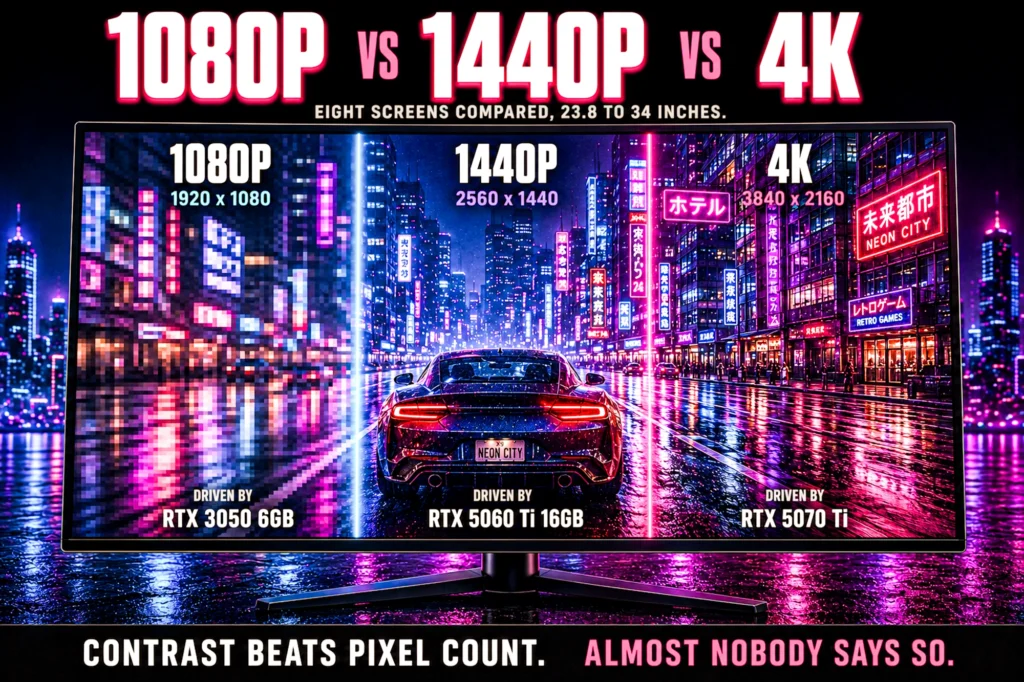
Resolution is the one decision that sets the price of everything else in the build, which is why it should be the first thing you choose and almost never is.
- 1440p is the answer for most people in 2026, and it has been for a while.
- 1080p is right for competitive play and tight budgets, and it is not a downgrade.
- 4K is a real jump in image quality and roughly doubles what the card costs.
- Buy them as a pair. A screen your card cannot drive is the most common and most expensive mistake here.
1080p vs 1440p vs 4K is usually argued as a question about image quality. It is really a question about budget, because the resolution you choose sets the price of the graphics card, and the graphics card is the most expensive part of the machine. Pick the screen first and the rest of the build follows from it.
Below are eight screens arranged by resolution rather than by price, every one verified on its own Amazon product page for our gaming monitor guide, each matched to the graphics cards that actually drive it. No figure here was typed from memory.
Every resolution at a glance

| Resolution | 2560×1440 |
| Size | 27 inch |
| Refresh | 180Hz |
| Rating | 4.6 (1,349) |

| Resolution | 1920×1080 |
| Size | 27 inch |
| Refresh | 240Hz |
| Rating | 4.4 (419) |
| Resolution | 2560×1440 |
| Size | 27 inch |
| Refresh | 260Hz |
| Rating | 4.3 (4,579) |

| Resolution | 2560×1440 |
| Size | 27 inch |
| Refresh | 300Hz |
| Rating | 4.4 (306) |
| Resolution | 2560×1440 |
| Size | 32 inch |
| Refresh | 180Hz |
| Rating | 4.4 (182) |

| Resolution | 2560×1440 |
| Size | 27 inch |
| Panel | OLED, 0.03ms |
| Rating | 4.5 (378) |

| Resolution | 3840×2160 |
| Size | 27 inch |
| Refresh | 120Hz |
| Rating | 4.4 (1,055) |

| Resolution | 3440×1440 |
| Size | 34 inch |
| Refresh | 240Hz |
| Rating | 4.5 (5,683) |
The short answer
Buy 1440p. For most people it is the point where the image is clearly better than 1080p and the graphics card required is still sane. It is the resolution most gaming monitors are now built around, which is why six of the eight screens here sit there, and why the best panels and the highest refresh rates are all found at that resolution.
Choose 1080p instead if you play competitively, if the budget is tight, or if you want the highest refresh rate per dollar. Choose 4K if image quality is what you actually care about and you are willing to pay roughly double on the card to get it.
What resolution actually changes
Pixel count, and everything downstream of it. 1440p is about 1.8 times the pixels of 1080p. 4K is four times 1080p and about 2.25 times 1440p. Your graphics card has to draw every one of them, every frame.
That scaling is why the card cost rises so steeply. It is also why screen size matters as much as resolution: at 24 inches, 1080p still looks sharp. At 27 inches the same pixels are stretched over more area and the image looks noticeably softer, which is why every 27 inch screen in this lineup is 1440p or better. If you want a bigger screen, you need more resolution to go with it, not just a larger version of the same one.
Resolution also drives video memory, which is the specification most likely to date a card. Our guide to how much VRAM you need covers the figures: 8GB is fine at 1080p, 12GB is the floor at 1440p, and 16GB is the entry point at 4K.
Match the card to the screen
This is the pairing that actually matters, and getting it wrong in either direction wastes money.
- 1080p at 240Hz — an RTX 5060 8GB or an RTX 3050 6GB. Both hold high frame rates at this resolution.
- 1440p — an RTX 5060 Ti 16GB as the sensible entry, an RTX 5070 12GB for high refresh rates.
- 1440p at 240Hz and above — an RTX 5070 or an RX 9070 XT, because sustaining those frame rates is a processing problem rather than a memory one.
- 4K — a 16GB card such as the RX 9070 XT at minimum, an RTX 5080 if you want 4K at high refresh.
- Ultrawide at 3440×1440 — budget closer to 4K than to 1440p, so a 16GB 4K-class card or better.
Every one of those cards is reviewed in our graphics card guide, and whichever you land on decides your power supply, covered in what PSU wattage you need.
1. Dell SE2726HG: 1080p done properly
27 inches, 1920×1080, 240Hz IPS. $149.99. 4.4 stars from 419 ratings, and the entry price in this lineup. This is 1080p as a deliberate choice rather than a compromise.
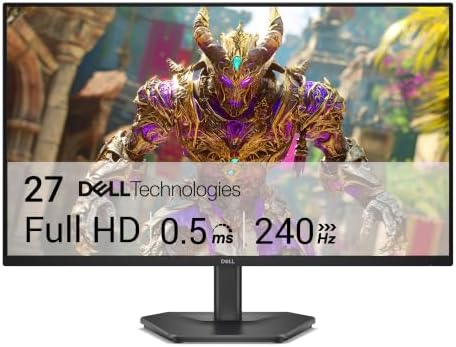
- Smooth motion: 240Hz refresh rate and fast 0.5ms response time provide crisp visuals and fluid movement with less input …
- Seamless gaming: FreeSync Premium and HDMI VRR eliminate tearing for smooth, responsive PC and console gameplay.
- Fast IPS: Faster 0.5ms response with excellent color accuracy across wide IPS viewing angles.
240Hz at this resolution is the least costly high refresh rate you can buy, and a mid-range card can actually sustain it in a competitive shooter. That combination is why 1080p remains the esports default rather than a legacy option.
The honest caveat is the size. At 27 inches, 1080p is stretched thinner than it is on a 24 inch panel, and if you sit close you will see the pixels. For competitive play at arm’s length that trade buys you a bigger field of view for the same money; for anything where you are looking at detail rather than movement, step up to the 1440p pick above.
- The entry price on this page at $149.99
- 240Hz at the least demanding resolution to drive
- IPS rather than a budget TN panel
- Dell warranty and support at budget money
- 1080p across 27 inches shows its pixels up close
- 419 ratings, a modest sample
- Little headroom if you later buy a stronger card
2. ASUS TUF VG27AQ3A: the 1440p sweet spot
27 inches, 2560×1440, 180Hz Fast IPS. $179.00. 4.6 stars from 1,349 ratings. This is the configuration most people should buy.

- High-Resolution QHD Gaming Display: 27-inch QHD (2560 x 1440) gaming monitor with 180Hz refresh rate designed for profes…
- ASUS Extreme Low Motion Blur Sync Technology: ELMB Sync technology enables ELMB and variable-refresh-rate technologies t…
- Advanced Synchronization Technologies: FreeSync Premium, G-Sync compatible and AdaptiveSync technology delivers a seamle…
27 inches at 1440p is the pairing this whole article is about. It is the resolution a mid-range card can drive at high frame rates, on the screen size that suits a normal desk. Compared with 1080p you get roughly 78 percent more pixels and a visibly sharper image; compared with 4K you give up sharpness you would struggle to notice at this size and get back frame rate you will feel constantly.
180Hz is comfortably past the point where extra refresh stops being obvious for most players, and Extreme Low Motion Blur Sync lets you run backlight strobing and variable refresh together, which most monitors make you choose between. G-SYNC Compatible and FreeSync Premium certified, so tearing is handled on either brand of card.
- 1,349 ratings at 4.6 stars
- 1440p at 27 inches, the best balance of sharpness and frame rate
- Strobing and variable refresh at the same time
- Full ergonomic stand at this price
- 180Hz, not the fastest panel on this page
- IPS contrast is weaker than the VA and OLED picks
- No USB hub
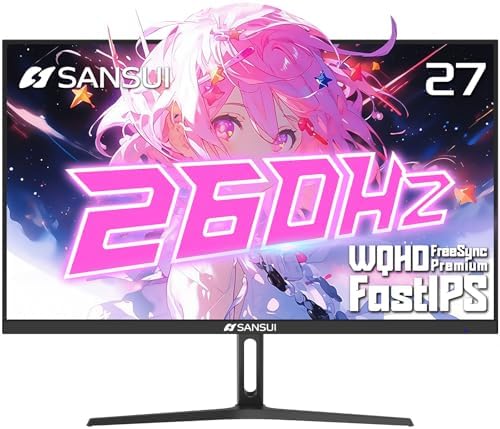
3. SANSUI 27 inch: the most owner evidence at 1440p
27 inches, 2560×1440, 260Hz Fast IPS. $259.99. 4.3 stars from 4,579 ratings, a very deep review base.
- ⭐27-inch WQHD 2560 x 1440P @ 260Hz Fast IPS High Refresh Rates Gaming Monitor
- Performance: MPRT 1ms Response Time丨MPRT Low Motion Blur Technology丨 FreeSync Premium丨320Nits Brightness丨Crosshair/RACIN…
- Screen Colors: HDR 10丨10Bits 丨DCI-P3 98%丨sRGB 130%丨178°V/H Viewing Angle丨Low Blue Light丨Anti-Flicker
The 4.3 rating comes from four and a half thousand people, which makes it more informative than a 4.7 from a hundred. A large sample pulls the average toward the truth, and 4.3 across that many owners is a solid, unspectacular screen rather than a problem.
It is also 260Hz rather than 240Hz, which is a difference you will not perceive but do not have to pay extra for.
- 4,579 ratings behind it
- 260Hz at 1440p
- Fast IPS with FreeSync Premium
- Usually an inexpensive route to 27 inch 1440p
- 4.3 stars, at the bottom of the range in this lineup
- Lesser-known brand than the Dell or ASUS options
- 260Hz is a specification you will not notice over 240Hz
4. ASUS TUF VG27AQM5A: the highest refresh rate here
27 inches, 2560×1440, 300Hz Fast IPS. $269.00. 4.4 stars from 306 ratings. The competitive option at 1440p, for players who want frame rate without dropping to 1080p.
- High-Resolution QHD Gaming Display: 27-inch QHD (2560×1440) gaming monitor with 300Hz refresh rate designed for professi…
- Fast IPS Technology with Rapid Response Time: ASUS Fast IPS technology enables a 0.3ms (GTG) response time(min.) for sha…
- Advanced Motion Blur Reduction: ASUS Extreme Low Motion Blur Sync (ELMB Sync) technology enables ELMB and variable-refre…
The honest caveat is the one that applies to every very high refresh panel: 300Hz is only useful if your card actually produces 300 frames per second in the games you play. At 1440p that is a demanding ask outside of esports titles, and it means a strong card rather than a mid-range one.
If you play competitive shooters at 1440p and have the graphics power to feed it, this is the screen. If you play single-player games at 60 to 100fps, the ASUS TUF VG27AQ3A above gives you the same image for less.
- 300Hz, the highest refresh rate in this lineup
- ELMB Sync for motion clarity
- Fast IPS at 1440p
- ASUS TUF build quality and warranty
- 306 ratings, a small sample
- 300Hz needs a strong card to be worth anything at 1440p
- Wasted if you play mostly single-player
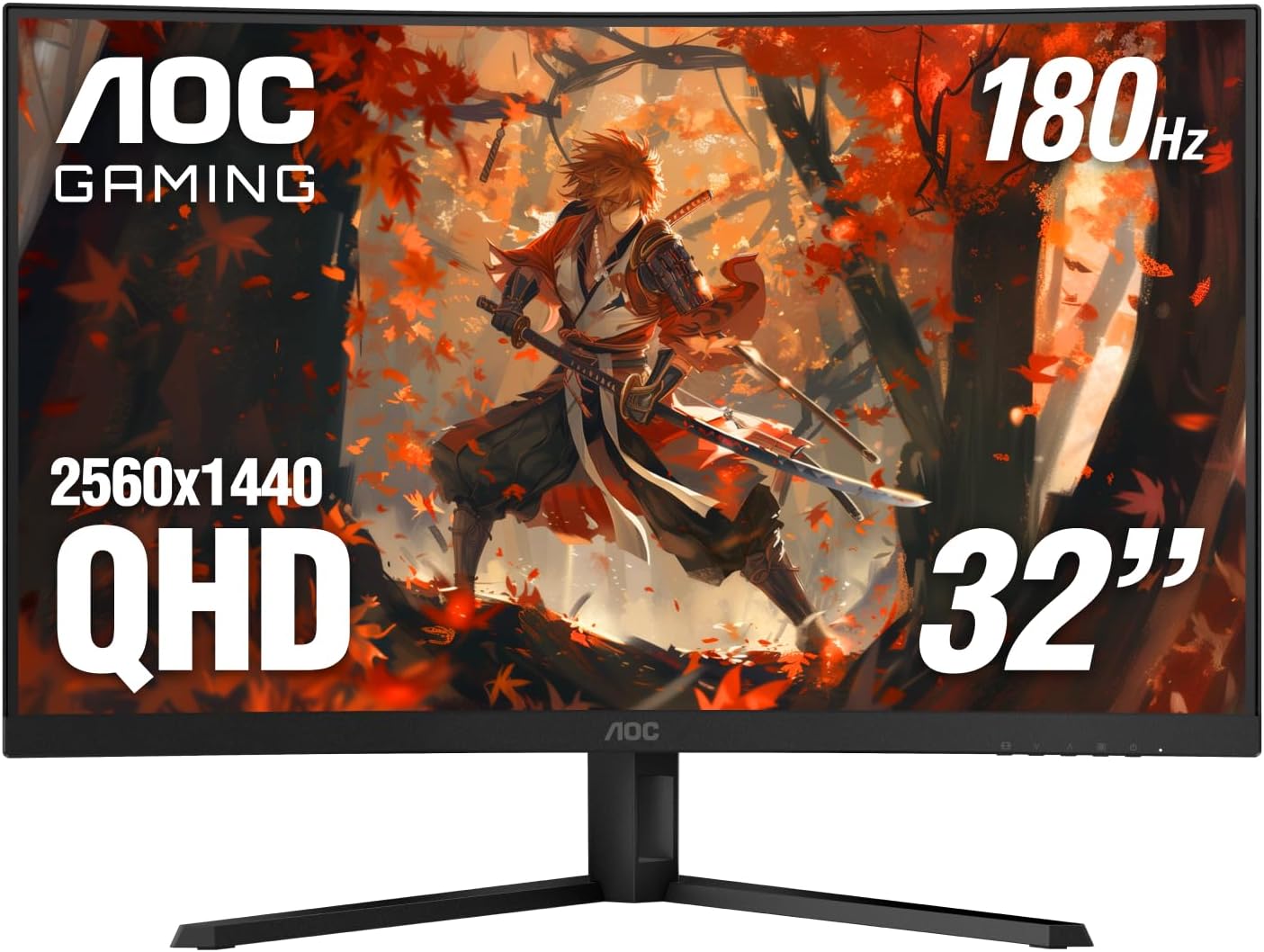
5. AOC CQ32G4VE: size without leaving 1440p
32 inches, 2560×1440, 180Hz curved VA. $199.99. 4.4 stars from 182 ratings.

- Immersive Visuals: 32-inch curved QHD (2560×1440) VA panel with a 1500R curvature for an immersive gaming experience, fe…
- Wide Color Gamut: Covers over 120% of the sRGB color space and boasts an 80,000,000:1 SmartContrast ratio, delivering vi…
- Seamless Connectivity: Equipped with 2x DisplayPort 1.4, 2x HDMI 2.0 ports, and an audio line-out for convenient connect…
1440p is the right resolution at 32 inches, and this is where the resolution question gets practical. Go to 4K at this size and you need a much stronger card for a sharpness gain you have to lean in to see. Stay at 1080p and the pixels become visible from a normal seating distance. 1440p across 32 inches lands almost exactly where 1080p does across 24.
The 1500R curve suits the width: at 32 inches the edges of a flat panel sit noticeably further from your eyes than the center of the screen, and the curve corrects for that without bending straight lines the way a tighter radius can. Being VA, contrast is far deeper than the IPS panels here, at some cost to viewing angle.
- 1440p at 32 inches, the correct pairing for this size
- 1500R curve, which genuinely helps at this width
- VA contrast, much deeper blacks than the IPS picks
- 180Hz with Adaptive-Sync, and 120Hz on console
- 180Hz rather than the 240Hz and 300Hz panels here
- VA viewing angles shift more than IPS off-center
- AOC publishes only a dynamic contrast figure, not a static one
6. LG UltraGear 27GS93QE: the OLED option
27 inches, 2560×1440, 240Hz OLED. $499.99. 4.5 stars from 378 ratings.
- 240Hz Refresh Rate – Gear up for smooth gameplay with an ultra-fast 240Hz OLED display. The faster speed lets you respon…
- VESA DisplayHDR True Black 400 & 1.5M:1 contrast ratio – VESA DisplayHDR True Black 400 certified means this monitor mee…
- NVIDIA G-SYNC Compatible and AMD FreeSync Premium Pro – Officially validated by NVIDIA as G-SYNC Compatible and equipped…
This is the panel that shows why resolution is not the only axis. It is 1440p, the same as the three screens above it, but OLED switches individual pixels off, so black is genuinely black rather than dark gray. In a dark game that difference registers immediately, in a way that going from 1440p to 4K does not.
Response time is 0.03ms, roughly ten times faster than the quickest IPS panel here, which removes motion smear entirely. HDMI 2.1 means a PS5 or Xbox Series X runs at full capability. LG covers the OLED panel itself under a two-year UltraGear warranty.
- 0.03ms response, about ten times faster than IPS here
- True per-pixel black, not backlight gray
- 4.5 stars from 378 ratings
- HDMI 2.1 for PS5 and Xbox Series X
- A big outlay next to the LCD picks here
- OLED burn-in remains a long-term consideration
- 1440p, so not the sharpest panel here
7. Dell S2725QS: real 4K with a proper stand
27 inches, 3840×2160, 120Hz IPS. $279.99. 4.4 stars from 1,055 ratings. A route onto 4K from a brand with a service department behind it.

- Improved ComfortView Plus: Reduces harmful blue light emissions to ≤35%, for all-day comfort without sacrificing color a…
- Refresh rate: A smooth, tear-free experience with AMD FreeSync Premium (refresh rate up to 120Hz) and an ultra-low 0.03m…
- Vivid colors: Immerse yourself in breathtaking 4K visuals with in-plane switching technology. Enjoy vibrant colors with …
4K on a 27 inch panel is the sharpest configuration in this guide, and the one that asks the most of your graphics card. Read the card section below before you choose it: at 3840×2160 you are pushing roughly twice the pixels of 1440p, and a card that comfortably runs 1440p at 144fps will not run 4K at the same rate.
What the money buys beyond the panel is a finished monitor. USB-C carries video, data and power on one cable to a laptop. The stand adjusts for height, tilt, swivel and pivot. 99% sRGB and an anti-glare coating make it a genuine work display as well as a games one.
- 4K at $279.99
- USB-C single-cable connection to a laptop
- Full ergonomic stand: height, tilt, swivel, pivot
- 1,055 ratings and Dell support behind it
- 120Hz, the lowest refresh rate here
- 5ms response, slower than the gaming-first panels
- 4K needs roughly twice the graphics card of 1440p
8. SANSUI 34 inch ultrawide: width instead of sharpness
34 inches, 3440×1440, 240Hz Fast VA, 1500R curve. $249.99. 4.5 stars from 5,683 ratings. The option that is not on the resolution ladder at all.

- 34 Inch Curved 240Hz UWQHD(3440*1440) Fast VA Ultrawide 21:9 HDR400 Gaming Monitor with AI Crosshair and AI Bluelight.
- Performance: 240Hz Refresh Rate | MRPT 1ms Response Time | Freesync | AI PQ(Visual Enhance) | Ultra Vivid(Weak/Middle/St…
- Ergonomic Stand: PIP/PBP | Tilt -5°~15°(+/-2°) | VESA Compatible (100x 100mm) | 178° Wide Viewing Angle | Durable Metal …
3440×1440 is roughly a third more pixels than standard 1440p, so budget the graphics card closer to 4K than to 1440p. What you buy is not sharpness, it is field of view: superb in racing, flight and open-world games, and close to irrelevant in a competitive shooter where the extra width is outside your attention anyway.
The VA panel gives better contrast than the IPS screens here, at the cost of slightly slower pixel response. At 240Hz that trade is well made.
- 21:9 field of view, excellent in racing and open-world games
- 240Hz with a 1500R curve
- 5,683 ratings at 4.5
- VA contrast beats the IPS panels here
- Needs a card budgeted closer to 4K than 1440p
- Little benefit in competitive shooters
- Some older games do not support 21:9 properly
The four cards that drive these screens
A monitor is half a decision. The other half is the card behind it, and buying one without costing the other is the most reliable way to end up disappointed — a 4K panel fed by an entry card is a worse experience than a 1080p panel fed properly.
These four cards span the whole range covered by the screens above, and the prices make the resolution ladder concrete in a way the panels alone do not.

| GPU | RTX 3050 |
| Memory | 6GB GDDR6 |
| Slots | 2-slot |
| Rating | 4.7 (1,140) |

| GPU | RTX 5060 Ti |
| Memory | 16GB GDDR7 |
| Bus | 128-bit |
| Rating | 4.6 (429) |
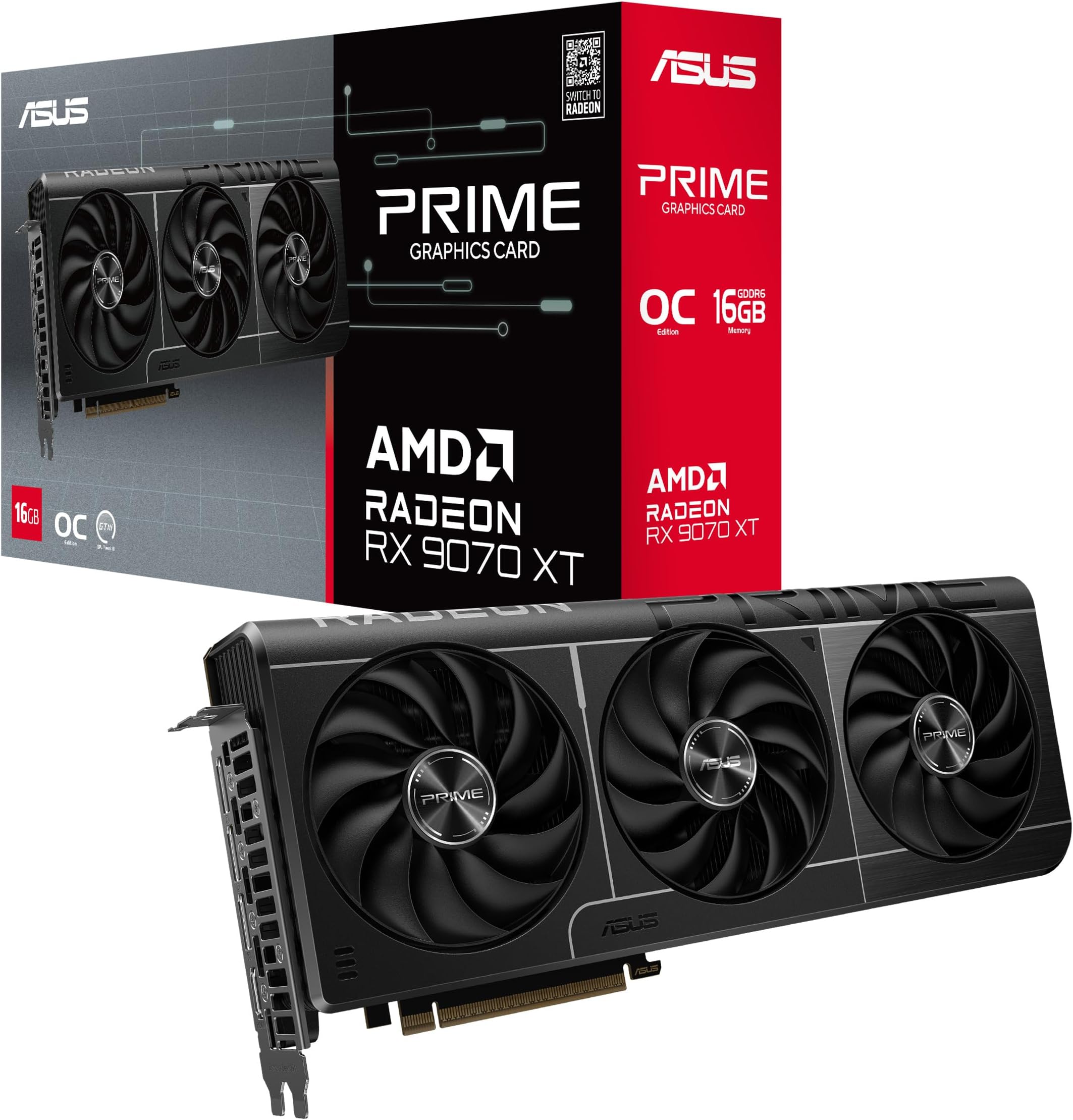
| GPU | RX 9070 XT |
| Memory | 16GB GDDR6 |
| Interface | PCIe 5.0 |
| Rating | 4.6 (493) |

| GPU | RTX 5080 |
| Memory | 16GB GDDR7 |
| Rating | 4.7 (293) |
RTX 3050 6GB — the 1080p card, and honest about it
$257.22. This is an inexpensive and sensible route to PC gaming and it should be bought for a 1080p screen and nothing else. 4.7 stars from 1,140 owners is real evidence, and the two-slot design fits cases that will not take a larger card.
What matters here is the pairing, not the card. Put this behind the $149.99 1080p panel from the grid above and you have a complete, balanced setup — a machine where neither half is waiting on the other. Put it behind a 4K screen and you have spent more money for a worse experience than the cheap pairing delivers.
- NVIDIA Ampere Streaming Multiprocessors: The all-new Ampere SM brings 2X the FP32 throughput and improved power efficien…
- 2nd Generation RT Cores: Experience 2X the throughput of 1st gen RT Cores, plus concurrent RT and shading for a whole ne…
- 3rd Generation Tensor Cores: Get up to 2X the throughput with structural sparsity and advanced AI algorithms such as DLS…
- $257.22, the entry price of the four cards here
- 4.7 stars from 1,140 owners
- Two-slot design fits compact cases
- Correctly matched to a 1080p panel
- 6GB of memory is at its limit, as our VRAM explainer sets out
- Not a 1440p card, and buying it as one will disappoint
- Previous-generation silicon
- No headroom to move up a resolution later
RTX 5060 Ti 16GB — the 1440p pairing
The card most readers of this article should be looking at. 1440p is where the majority of gaming monitors now sell, and this is the card that drives one properly without stepping into flagship pricing.
The 16GB matters at this resolution specifically. Higher output resolution asks more of the frame buffer, and 1440p is where 8GB starts to feel like a constraint rather than a number on a box. Our VRAM explainer goes through why. Pair this with the 27in 1440p panel above and the two halves are genuinely matched.
- AI Performance: 767 AI TOPS
- OC mode: 2632 MHz (OC mode)/ 2602 MHz (Default mode)
- Powered by the NVIDIA Blackwell architecture and DLSS 4
- 16GB of GDDR7, the right figure for 1440p
- Current-generation silicon at a mid-range price
- 4.6 stars across 429 ratings
- Correctly matched to the 27in 1440p panels above
- Costs more than most of the monitors on this page
- 128-bit memory bus, narrower than the 4K card below
- Not a 4K card, despite the memory figure suggesting otherwise
- 429 ratings, thinner than the older RTX 3050 above
RX 9070 XT — where 4K actually starts
This is the honest entry point to 4K gaming, and the price is the argument this article keeps making: the screen is the cheap half of a 4K setup. The 4K panel in the grid above is $279.99. The card that drives it properly costs more than four times that.
16GB of GDDR6 over PCIe 5.0, which is the memory figure that separates a genuine 4K card from a 1440p card carrying a large number on the box. 4.6 stars from 493 owners.

- Axial-tech fans now feature a smaller fan hub that facilitates longer blades and a barrier ring that increases downward …
- Phase-change GPU thermal pad helps ensure optimal heat transfer, lowering GPU temperatures for enhanced performance and …
- 2.5-slot design allows for greater build compatibility while maintaining cooling performance
- 16GB of GDDR6, a real 4K memory figure
- Comfortably drives the $279.99 4K panel above
- DisplayPort 2.1a and HDMI 2.1b, with a 2.5-slot cooler and a dual BIOS switch
- Also a very fast 1440p card if you stay at that resolution
- Costs several times what the 4K monitor it feeds does
- 493 ratings behind it
- Check your case: this is a 2.5-slot card
- Overkill behind a 1080p panel
RTX 5080 — 4K high-refresh, and the ceiling here
$1,899.99, the largest single outlay in this article, and the card for people who want 4K at high frame rates rather than 4K at 60.
Worth stating it plainly: this card at $1,899.99 plus the 4K panel above at $279.99 is what 4K high-refresh costs for two components, before a processor, memory, storage, board, case or power supply. That is the real cost of 4K high-refresh gaming, and knowing it before you start is considerably better than discovering it halfway through a build.
- Powered by the NVIDIA Blackwell architecture and DLSS 4. System Requirements: Minimum 850W PSU with 16-pin 12V-2×6 (12VH…
- Military-grade components deliver rock-solid power and longer lifespan for ultimate durability. Compatibility: 348mm (13…
- Protective PCB coating helps protect against short circuits caused by moisture, dust, or debris
- The only card here that makes 4K high-refresh realistic
- 4.7 stars from 293 owners
- Will not be the limiting half of any pairing on this page
- $1,899.99, more than six times the 4K monitor
- 293 ratings is a thin sample for this money
- Needs 850W, per our wattage explainer
- Completely wasted behind a 1080p or 1440p 60Hz panel
Every screen compared
| Monitor | Resolution | Size | Refresh | Price | Rating |
|---|---|---|---|---|---|
| Dell SE2726HG | 1920×1080 | 27 inch | 240Hz | $149.99 | 4.4 (419) |
| ASUS TUF VG27AQ3A | 2560×1440 | 27 inch | 180Hz | $179.00 | 4.6 (1,349) |
| SANSUI 27 inch | 2560×1440 | 27 inch | 260Hz | $259.99 | 4.3 (4,579) |
| ASUS TUF VG27AQM5A | 2560×1440 | 27 inch | 300Hz | Check price | 4.4 (306) |
| AOC CQ32G4VE | 2560×1440 | 32 inch | 180Hz | $199.99 | 4.4 (182) |
| LG UltraGear 27GS93QE | 2560×1440 | 27 inch | 240Hz OLED | $499.99 | 4.5 (378) |
| Dell S2725QS | 3840×2160 | 27 inch | 120Hz | $279.99 | 4.4 (1,055) |
| SANSUI 34 inch | 3440×1440 | 34 inch | 240Hz | $249.99 | 4.5 (5,683) |
The mistake to avoid
Buying the screen and the card at different times, from different budgets, without checking they match. A 4K monitor fed by a 1080p card produces a worse experience than a 1080p monitor fed properly, because you end up running below the panel’s native resolution, which looks soft, or running at native and stuttering.
The rule is simple: decide the resolution, then buy a card that can drive it, then stop. Spending above your screen is the most common way to waste money in a gaming build, and spending below it is the most common way to be disappointed by one.
Contrast beats pixel count, and almost nobody says so
The single most useful thing on this page is buried in the OLED section, so here it is plainly: a 1440p OLED will impress most people more than a 4K IPS panel will.
True blacks and per-pixel lighting change how a dark scene looks far more dramatically than additional sharpness does, and the OLED only asks for a 1440p-class graphics card. If your goal is the best-looking games rather than the highest specification, that is the cheaper and better route, and it is the opposite of what the resolution ladder implies.
Refresh rate or resolution — which should you buy first?
If the budget only stretches to one upgrade, this is the question that decides it, and the answer depends entirely on what you play.
For competitive shooters, refresh rate wins and it is not close. Going from 60Hz to 144Hz or beyond changes how the game responds under your hands in a way a sharper image does not. Motion is clearer, aiming is easier to correct mid-movement, and the benefit is present in every single match. A 1080p 240Hz panel is a better competitive tool than a 4K 60Hz one at twice the price.
For single-player and atmospheric games, resolution wins. Detail, draw distance and the general sense of a place being real all improve with pixel count, and you are not fighting anyone for a reaction time. This is where 1440p and 4K earn their money.
For most people who do both, 1440p at a high refresh rate is the answer, which is exactly why that combination dominates the monitor market and why most of the panels in the grid above sit there. It is not a compromise so much as the point where the two curves cross.
The trap worth naming: a high refresh rate you cannot feed is decoration. A 240Hz panel driven by a card producing 70 frames per second is a 70Hz experience with a bigger number on the box. Refresh rate and resolution both have to be matched to the card, which is why the four cards above are in this article at all.
What size screen for each resolution?
Resolution on its own tells you nothing about how sharp a screen looks. What matters is how those pixels are spread — the same 1440p is crisp on a 27in panel and noticeably softer stretched across 32in.
1080p: up to 24in. Past that the pixels become individually visible at a normal desk distance and the image starts to look coarse. The 23.8in panel above is the right size for the resolution.
1440p: 27in is the sweet spot. This pairing is the most common in gaming for good reason — it is sharp at desk distance without needing scaling to read text comfortably. 32in at 1440p works but is visibly softer, which is a real trade for the extra size rather than a free upgrade.
4K: 27in and up. At 27in, 4K is extremely sharp and you will probably want display scaling to read anything outside a game. At 32in it is sharp and comfortable without scaling, which is why that size is popular for people who work on the same screen.
Ultrawide is a different axis entirely. The 34in ultrawide above is not sharper than a 27in 1440p panel — it is wider. You are buying field of view rather than detail, which is excellent in racing, flight and strategy games and largely irrelevant in a competitive shooter. Judge it on that basis rather than against the resolution ladder.
The practical check: work out your pixel density before buying a large panel at a modest resolution. A 32in 1080p screen exists and it is a worse experience than a 24in 1080p screen, for more money.
Does resolution affect your frame rate that much?
Yes, and the scaling is steeper than people expect, which is the root of most disappointed purchases.
The pixel counts are not close. 1440p is roughly 1.8 times as many pixels as 1080p. 4K is four times as many. Every one of those pixels has to be calculated for every frame, so moving up a tier is a substantial increase in work for the card — not a modest one.
Which is why a card is described as a 1080p or a 1440p card at all. It is not marketing shorthand. A card comfortably producing high frame rates at 1080p can land somewhere much less comfortable at 4K, running exactly the same settings in exactly the same game.
Upscaling changes the arithmetic, and it is why the tiers here are targets rather than laws. Modern cards can render internally at a lower resolution and reconstruct the image to your display’s native one, which recovers a large share of the cost. This is genuinely useful and worth enabling — but it is a reason to be optimistic about a well-matched pairing, not a reason to buy a 4K panel for an entry card and hope.
The honest sequence: decide the resolution you want to play at, then buy the card that drives it, then buy the panel. Doing it in the other order is how people end up with a beautiful screen and a machine that cannot feed it.
What to check before you buy any monitor
Five things, in order. They take a couple of minutes and they catch the mistakes that lead to returns.
1. Match the resolution to the card you own or intend to buy. This is the whole article in one line, and it is the check people skip.
2. Match the size to the resolution. 24in for 1080p, 27in for 1440p, 27in and up for 4K. A large panel at a low resolution looks worse, not bigger.
3. Confirm the refresh rate is one your card can actually reach in the games you play, at the settings you use. Otherwise you are paying for a number rather than an experience.
4. Check the panel type against your room. As covered above, contrast frequently matters more to how a screen looks than pixel count does, and it is the specification buyers most often ignore in favour of the headline resolution.
5. Check the ports and the cable. A high refresh rate at a high resolution needs enough bandwidth to carry it, and the cable in the box is not always sufficient for the panel’s maximum. It is a cheap thing to get wrong and an annoying one to diagnose after the fact.
Get those five right and the screen will be the part of your setup you never think about again — which, for a component you stare at for every hour you play, is exactly the outcome worth aiming for.
Is 4K actually worth it for gaming?
For most people, right now: no — and the reason is arithmetic rather than snobbery about pixels.
The screen is the cheap half. The 4K panel in this article is $279.99. The card that drives it properly is the RX 9070 XT, and the card that drives it at high refresh rates is $1,899.99. So the true cost of moving to 4K is not the monitor price, it is the four-figure card sitting behind it, and any comparison that leaves that out is misleading.
Where 4K genuinely earns it: large screens at desk distance, slower single-player games where you have time to look at anything, flight and driving simulators, and anyone using the same panel for detailed work. If you play story games on a 32in screen, 4K is a real and visible upgrade.
Where it does not: competitive shooters, anything where frame rate is the point, and any setup where the card cannot keep up. A 4K panel running at 45 frames per second is a worse gaming experience than a 1440p panel running at 120, and it cost considerably more to build.
The comparison worth doing before you commit. Take what you would spend on an entry 4K card and instead put it into the 1440p card above. You keep a meaningful amount, and that money buys a substantially better processor, or 32GB of memory, or a large NVMe drive — all of which you will notice more often than the resolution difference.
The honest recommendation: buy 1440p at a high refresh rate. Come to 4K when the card that drives it costs what a mid-range card costs today, which is a matter of time rather than a matter of saving harder.
What resolution do consoles actually output?
This trips people up when they connect a console to a PC monitor, and the short version is that the number on the box is a maximum, not a promise.
Current consoles advertise 4K output, and they do reach it — in some games, at some frame rates, frequently using the same upscaling techniques described earlier rather than rendering every pixel natively. Most console titles now offer a choice between a quality mode favouring resolution and a performance mode favouring frame rate, which is precisely the trade this whole article is about, just made by the developer instead of by you.
What that means for buying a monitor for a console:
A 1440p monitor is often the smart choice, and it is the one people overlook. It is sharper than 1080p, far cheaper than a good 4K panel, and consoles handle it well. Check that the specific console supports 1440p output before committing, because support has varied by generation and by model.
If you buy 4K for a console, buy for the ports as much as the panel. High refresh rates at 4K need enough bandwidth to carry them, and a monitor that technically accepts a 4K signal is not necessarily one that accepts it at the refresh rate you were hoping for.
And do not pay for a refresh rate the console cannot use. A 240Hz panel connected to a console capped at a lower figure is money spent on a number. Match the panel to the source, which is the same rule as matching it to a graphics card.
Response time, and the number that is mostly marketing
Monitor listings quote a response time in milliseconds, usually with a very small figure and the letters GtG beside it. It is among the least trustworthy specifications in the category, and here is why.
The number is measured under conditions chosen by the manufacturer. There is no requirement to test the transitions that look worst, and a headline figure is frequently achieved only with the panel’s most aggressive overdrive setting enabled — a setting that often introduces visible artifacts of its own. Two panels quoting the same response time can behave noticeably differently in motion.
What actually matters more:
Refresh rate, which is measured consistently and cannot be fudged. 144Hz is 144Hz on every panel that claims it.
Panel technology, which tells you far more about motion behavior and contrast than a response figure does — and, as covered above, contrast is the thing that most changes how a screen looks in a dark room.
Variable refresh rate support, which smooths out the mismatch between your card’s output and the panel’s refresh cycle. This eliminates tearing and does more for perceived smoothness than shaving a millisecond off a transition.
The practical guidance: treat response time as a rough tier indicator rather than a specification. Any modern gaming panel at a decent refresh rate is fast enough that the difference between the quoted figures is not what will bother you. Spend your attention on refresh rate, panel type and whether the card can feed it.
Should you buy an ultrawide instead?
An ultrawide is not a step up the resolution ladder — it is a step sideways, and it should be judged completely differently.
What you gain is field of view. More of the world is on screen at once. In racing games you can see the apex; in flight simulators you get the instruments and the horizon together; in strategy games you see more of the map without scrolling. In those genres the effect is genuinely immersive in a way a sharper 16:9 panel is not.
What you do not gain is sharpness. The 34in ultrawide in this article is 3440×1440 — the same vertical resolution as the 27in 1440p panels above, spread wider. It is not sharper than they are. It is wider than they are, and it costs more.
The costs worth knowing before you buy one:
Not every game supports it properly. Most modern titles do. Some older ones stretch the image or letterbox it, and a few competitive games deliberately restrict the aspect ratio so nobody gains an advantage from seeing more — which means in exactly the genre where field of view would matter most, you may not get it.
It asks more of the card than 1440p does, because there are more pixels across. Budget for that in the pairing, the same as any other resolution decision.
Desk depth matters. A 34in curved panel needs room to sit far enough back that the edges are comfortable to look at. Measure before ordering, because this is the return nobody anticipates.
Who should buy one: people who play simulators, strategy games or open-world titles, and who also work on the same screen — where the extra width is genuinely useful all day rather than only in games. Who should not: competitive players, anyone on a shallow desk, and anyone hoping it will look sharper than the 27in panel it costs more than.
A note on buying second-hand or refurbished panels
Monitors are one of the better second-hand buys in a PC setup, because unlike a graphics card they have no thermal history that quietly shortens their life, and unlike storage they have no write cycles to have used up. A panel that works today will very probably still work in five years.
What to check, and it is a short list. Look for dead or stuck pixels against a plain white and a plain black background, both of which are easy to display before you hand over money. Check for uneven backlight bleed in a dark room, which is the fault most likely to irritate you daily and the one photographs rarely show. Confirm the stand and the correct cable are included, because replacing either can cost a meaningful share of what you saved.
What not to worry about: hours of use, which does not degrade an LCD panel the way it does other components, and cosmetic marks on the casing, which have no bearing on the image.
The one exception is OLED. Those panels can retain a faint permanent image where static elements have sat for very long periods, so a used OLED that spent its life displaying the same interface is a genuine risk in a way a used LCD is not. Ask what it was used for.
Is HDR worth paying extra for?
Sometimes, and the reason it disappoints so often is that the label covers an enormous range of quality. Two monitors can both advertise HDR and deliver completely different experiences.
What HDR is supposed to do is widen the gap between the darkest and brightest parts of an image, so a sunlit window and a shadowed corner can both be right in the same frame. Done properly it is a more visible upgrade than moving up a resolution tier.
Why it usually is not done properly. Real HDR needs a panel that can get genuinely bright and control that brightness in small regions of the screen independently. A monitor that accepts an HDR signal but cannot do either of those things will display it, and it will frequently look worse than the standard image — washed out and flat rather than vivid.
The practical rule: ignore HDR as a tick-box on the specification list. If a panel is bright and has strong native contrast, HDR content will look good on it. If it is a modestly bright panel with ordinary contrast, HDR support is a label rather than a feature, and it should not move your decision by a dollar.
This is the same point the contrast section above makes, arriving from a different direction: the underlying panel decides how good an image looks, and the acronyms on the box mostly do not.
Two monitors, or one bigger one?
A question that comes up as soon as anyone has spare desk space, and the answer splits cleanly by what you do with the machine.
Two screens win for anything involving reference material. A guide open beside the game, chat on one side, a stream dashboard, or work where you compare two documents. Two panels give you two genuinely separate spaces and a hard edge between them, which is easier to organize than one large surface.
One larger screen wins for immersion. A bezel through the middle of your field of view is exactly where you do not want one, so nobody games across two panels. If gaming is the priority, a single larger or wider screen is the better spend.
The mixed setup most people actually want: one good gaming panel matched to their card, plus a cheaper second screen off to the side for everything that is not the game. That second screen does not need a high refresh rate or a fast response time, which makes it inexpensive — and it removes the temptation to alt-tab out of a full-screen game, which is worth something on its own.
One thing to check first: confirm your graphics card has the outputs for both, and remember that driving a second display consumes a little of the card’s resources. It is a small cost, but on an entry card already working hard at its target resolution, it is not nothing.
What we would not worry about
- Refresh rates you cannot feed. A 300Hz panel is only useful if your card produces frames at that rate in the games you actually play.
- 8K. Not a gaming resolution in 2026, and not close.
- Response time claims. Manufacturer figures are measured generously and rarely separate anything meaningful between good panels.
- Curve radius. Personal preference, no performance effect. 1000R is more aggressive than 1500R; neither is better.
- 260Hz versus 240Hz. Not a difference you will perceive. Do not pay for it.
How to decide in one minute
Competitive shooters and a tight budget: 1080p at 24 inches, high refresh. Everything else, and most people: 1440p at 27 inches with a 16GB card. Image quality above all: a 1440p OLED, or 4K at 160Hz if sharpness specifically is what you want. Racing and open-world games: ultrawide, budgeted like 4K.
Complete builds costed around each of these are in our parts lists for $1,000, $2,000 and $3,000. If you have not settled whether to build at all, our guide to prebuilt vs building your own PC comes first.
Frequently asked questions
Is 1440p better than 1080p for gaming?
For most people yes. At 27 inches the image is clearly sharper, 240Hz panels are now common, and the cards that drive 1440p well are the ones most buyers were considering anyway. The exception is competitive play, where 1080p remains the cheapest route to very high frame rates.
Is 4K worth it for gaming in 2026?
It is a genuine step up in sharpness, and it roughly doubles what you spend on the graphics card compared with 1440p. It is worth it if pixel density is what you care about and the budget covers a 16GB card. If you want the biggest visible improvement for less money, a 1440p OLED usually impresses more than a 4K IPS panel.
What graphics card do I need for 1440p?
A 16GB card is the sensible target, such as the RTX 5060 Ti 16GB, with the RTX 5070 for high refresh rates. The deciding factor at this resolution is memory rather than raw speed, because 1440p is exactly where 8GB cards start forcing you to lower texture quality.
Does screen size change which resolution I need?
Yes. The same pixels stretched over a larger panel look softer. 1080p is sharp at 24 inches and noticeably soft at 27, which is why every 27 inch screen worth buying is 1440p or better. If you want a bigger screen you need more resolution with it, not just a larger version of the same panel.
How much VRAM do I need at each resolution?
8GB is enough at 1080p, 12GB is the working minimum at 1440p and 16GB is the entry point at 4K. Running out of video memory causes stutter rather than lower frame rates, which is why it is worth buying above the minimum if the price gap is small.
Is ultrawide the same as 4K?
No. A 3440×1440 ultrawide is about a third more pixels than standard 1440p, so budget the graphics card closer to 4K than to 1440p. What it gives you is field of view rather than sharpness, which is excellent in racing and open-world games and largely irrelevant in competitive shooters.
Is a 1440p OLED better than a 4K IPS monitor?
For most people, yes. Contrast is more visible than pixel density, and an OLED produces true blacks with per-pixel lighting that changes how a dark scene looks far more than extra sharpness does. It also only needs a 1440p-class graphics card, so the total cost of the setup is lower.
Is 300Hz worth it over 240Hz?
Only if your graphics card actually produces that many frames in the games you play, which at 1440p means esports titles and a strong card. For single-player gaming at 60 to 100fps, a 240Hz panel costs less and delivers exactly the same experience.
What happens if my graphics card cannot drive my monitor?
You either run below the panel’s native resolution, which looks soft because the image is being scaled, or you run at native and accept low or inconsistent frame rates. Both are worse than buying a lower resolution screen and feeding it properly, which is why the screen and card should be chosen together.
Is 4K worth it for gaming?
For most people not yet, and the reason is the card rather than the screen. The 4K panel in this article is 299.99 dollars but the card that drives it properly is over a thousand. Spend the difference on a 1440p pairing and put the savings into the processor, memory or storage, all of which you will notice more often than the resolution difference.
Should I get a higher refresh rate or a higher resolution?
Refresh rate for competitive shooters, resolution for single-player and atmospheric games. For most people who play both, 1440p at a high refresh rate is where the two curves cross, which is why that combination dominates the gaming monitor market. A high refresh rate your card cannot feed is decoration.
What size monitor is best for 1440p?
27 inches is the sweet spot. It is sharp at desk distance without needing display scaling to read text comfortably. 32 inches at 1440p works but is visibly softer, which is a genuine trade for the extra size rather than a free upgrade. For 1080p stay at 24 inches or below, and for 4K go 27 inches and up.
Does resolution affect FPS?
Substantially. 1440p is roughly 1.8 times as many pixels as 1080p and 4K is four times as many, and every pixel is calculated for every frame. This is why cards are described as 1080p or 1440p cards. Upscaling recovers a good share of the cost by rendering internally at a lower resolution, but it is a reason to be confident about a matched pairing rather than a reason to buy a 4K panel for an entry card.
Is an ultrawide monitor better than 1440p?
It is different rather than better. A 34 inch 3440×1440 ultrawide has the same vertical resolution as a 27 inch 1440p panel spread wider, so it is not sharper, it is wider. Buy it for racing, flight and strategy games where field of view matters. Avoid it for competitive shooters, where some games restrict the aspect ratio anyway.
Is monitor response time important?
Less than the listings suggest. The quoted figure is measured under conditions the manufacturer chooses and often needs an aggressive overdrive setting that introduces artifacts of its own, so two panels quoting the same number can behave differently. Refresh rate, panel technology and variable refresh rate support all tell you more about how a screen will actually look in motion.
Related buying guides
- Best Gaming Monitors 2026 — the full review of all eight screens above.
- Best Graphics Cards 2026 — the cards that drive each resolution.
- What CPU to Pair With Your GPU — resolution also decides how much processor you need.
- How Much VRAM Do You Need — resolution decides the memory figure to shop for.
- What PSU Wattage Do You Need — whichever card you land on decides the power supply.
- Prebuilt vs Build Your Own PC — whether to assemble it yourself at all.
- Gaming PC Build Under $2,000 — a complete 1440p parts list, already matched.
The bottom line
Buy 1440p at 27 inches unless you have a specific reason not to. It is where the panels are best, where the competition is fiercest, and where the graphics card required is still sane.
Go down to 1080p if you play competitively or the budget is tight, and do it without feeling you settled. Go up to 4K if sharpness is genuinely what you want and you will pay for the card. And if what you actually want is the best-looking games rather than the biggest number, buy the OLED and spend the difference on the graphics card instead.
Your resolution also decides how hard you can push an upscaler. Our DLSS vs FSR vs XeSS explainer explains why Performance mode works at 4K and disappoints at 1080p.
Gamers Tech Guide participates in the Amazon Services LLC Associates Program. As an Amazon Associate we earn from qualifying purchases.